138
Selecting Alphabets
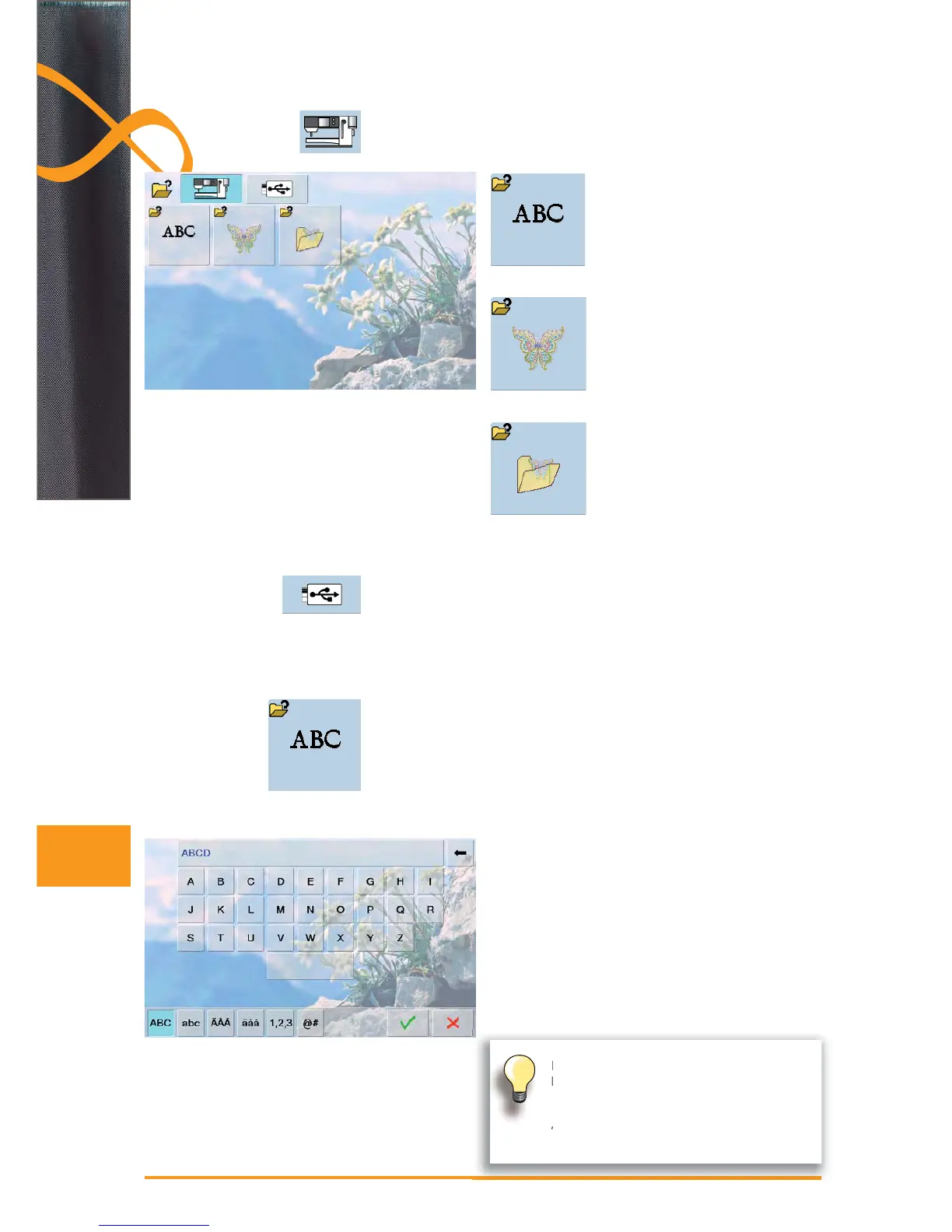
touch the «Alphabets» icon in the ►
Selection menu
the various alphabet types are
►
visible in the display
select an alphabet type ►
a keyboard appears ►
Selecting Motifs
touch the «Motifs» icon in the ►
Selection menu
the embroidery motifs appear in the ►
display in color
select an embroidery motif = touch
►
the desired motif icon
Selecting from My Designs
touch «My Designs» in the ►
Selection menu
your saved personal motifs appear
►
in the display in color
touch the desired motif icon ►
Selecting
Alphabets
From Embroidery Computer
select embroidery motifs from the «Alphabets», «Motifs» and «My Designs» ►
files
Embroidery Motifs
From USB Stick
insert USB stick ►
touch the USB stick icon ►
the embroidery motifs on the stick appear in the display in color ►
touch the desired motif icon ►
select the alphabet desired from the Selection menu ►
a special screen with a keyboard appears ►
the icon «ABC» (upper case) is automatically activated ►
select the desired characters ►
for spaces, touch the larger bar at the bottom of the ►
keyboard
letters appear in the text bar ►
to delete individual letters, touch arrow icon ►
letters are deleted from back to front►
to delete all letters, touch the text bar ►
Letters can be combined and either directly embroidered, altered or combined
with motifs with the embroidery computer.
Entering Lettering
If all the lettering cannot be displayed in the
hoop, rotate the lettering by 90° (there is then
more room for the lettering in the entire length
of the embroidery hoop). If this does not help,
decrease the lettering size or reduce the
number of letters.


 To Next Page
 Loading...