66
Buttonholes
Leave Program
touch ► or «man»
screen reverts to original Buttonhole screen ►
Combining with Functions
select desired buttonhole type ►
touch the «man» icon = manual ►
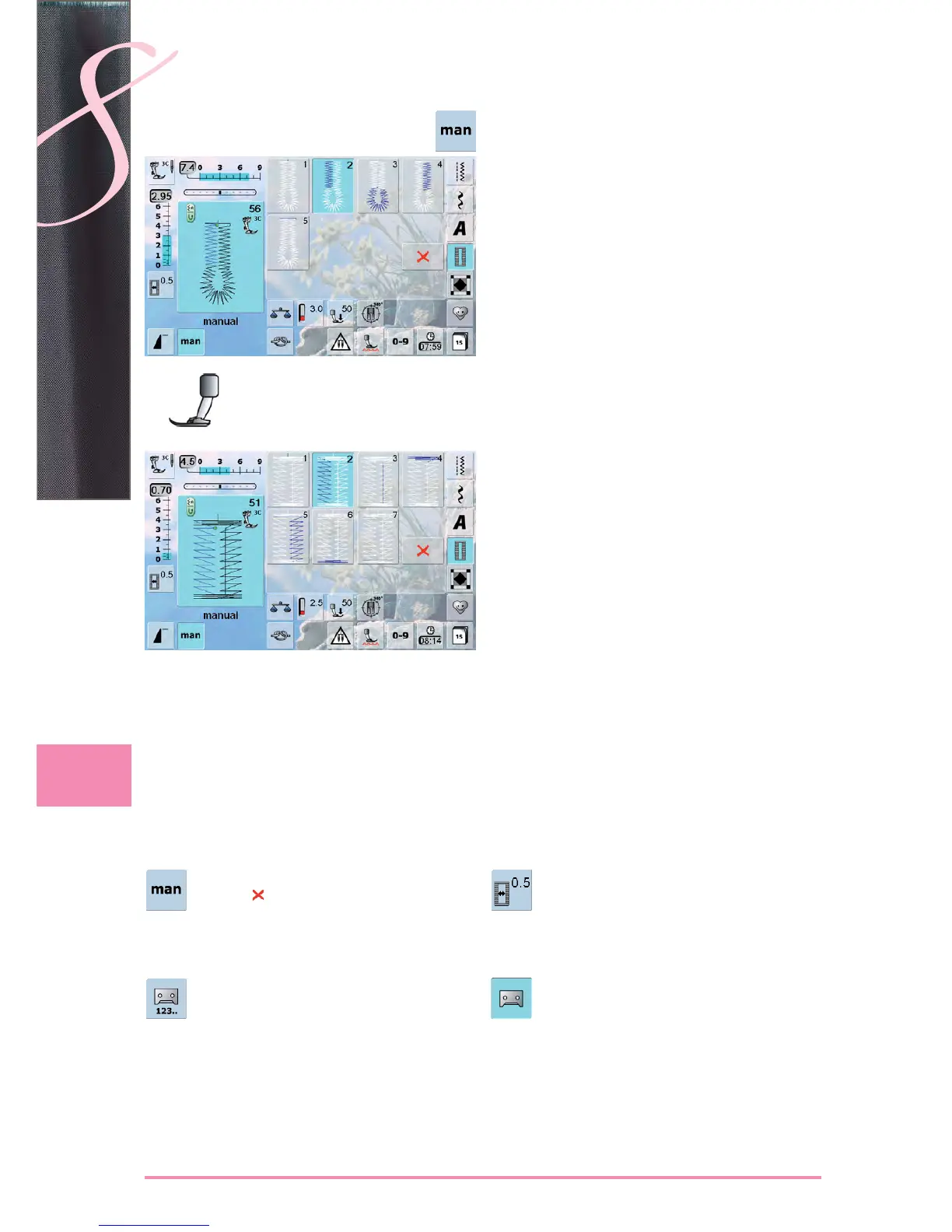
Sewing 5-Step Buttonhole
the length of the beads is determined manually while ►
sewing
bartack, eye and securing stitches are pre-programmed ►
individual steps can also be selected by pressing the ►
Quick Reverse button
step «1» is activated for the beginning of the buttonhole ►
at the beginning of sewing, step «2» is activated ►
sew first bead ►
stop sewing at the desired bead length ►
touch «3» ►
sewing computer sews the eye or the keyhole ►
touch «4» ►
sewing computer sews 2nd bead in reverse ►
stop sewing at the first stitch ►
touch «5» ►
sewing computer sews the top bartack and secures ►
stitches automatically
Sewing 7-Step Buttonhole
step «1» is activated for the beginning of the buttonhole ►
at the beginning of sewing, step «2» is activated ►
sew first bead ►
stop sewing at the desired bead length ►
touch «3» ►
sewing computer sews straight stitches in reverse ►
stop sewing computer at the 1st stitch of the first bead ►
touch «4» ►
the sewing computer sews top bartack and stops ►
automatically
touch «5» ►
sewing computer sews the second bead ►
stop sewing ►
touch «6» ►
the sewing computer sews bottom bartack and stops ►
automatically
touch «7» ►
sewing computer secures stitches and stops automati- ►
cally
Manual 5- or 7-Step Buttonhole
Buttonhole Slit Width
select buttonhole ►
touch «Buttonhole Slit Width» icon ►
set the cutting space width using the stitch ►
width or stitch length knobs (0.1 - 2mm)
larger slit width will result in narrower beads ►
Buttonhole Stitch Counter
select buttonhole ►
touch the «Stitch Counter» icon ►
when the desired length is achieved ►
(first bead) press the Quick Reverse button
after the length of the second bead has
►
manually been set using the Quick Reverse
button, the display changes to «auto»
the selected buttonhole is programmed ►
for making very large repeatable buttonholes ►
Programming Buttonhole Length
the icon is automatically highlighted in blue ►
(= active) when a buttonhole is selected
buttonhole length can be set with the Quick
►
Reverse button or the length can be program-
med directly by touching the icon
if the buttonhole is programmed the icon is ►
inactive, gray
if a new length is to be programmed, touch the ►
icon again
attach foot no. 3C ►


 To Next Page
 Loading...