Stop the Printer
Introduction
The printer can stop in two ways.
• Manually
Use the Stop button
or the [Stop after job] button to stop the printer.
• Automatically
Define a corresponding setting in the workflow profiles.
Stop the Printer Manually
Manual stop
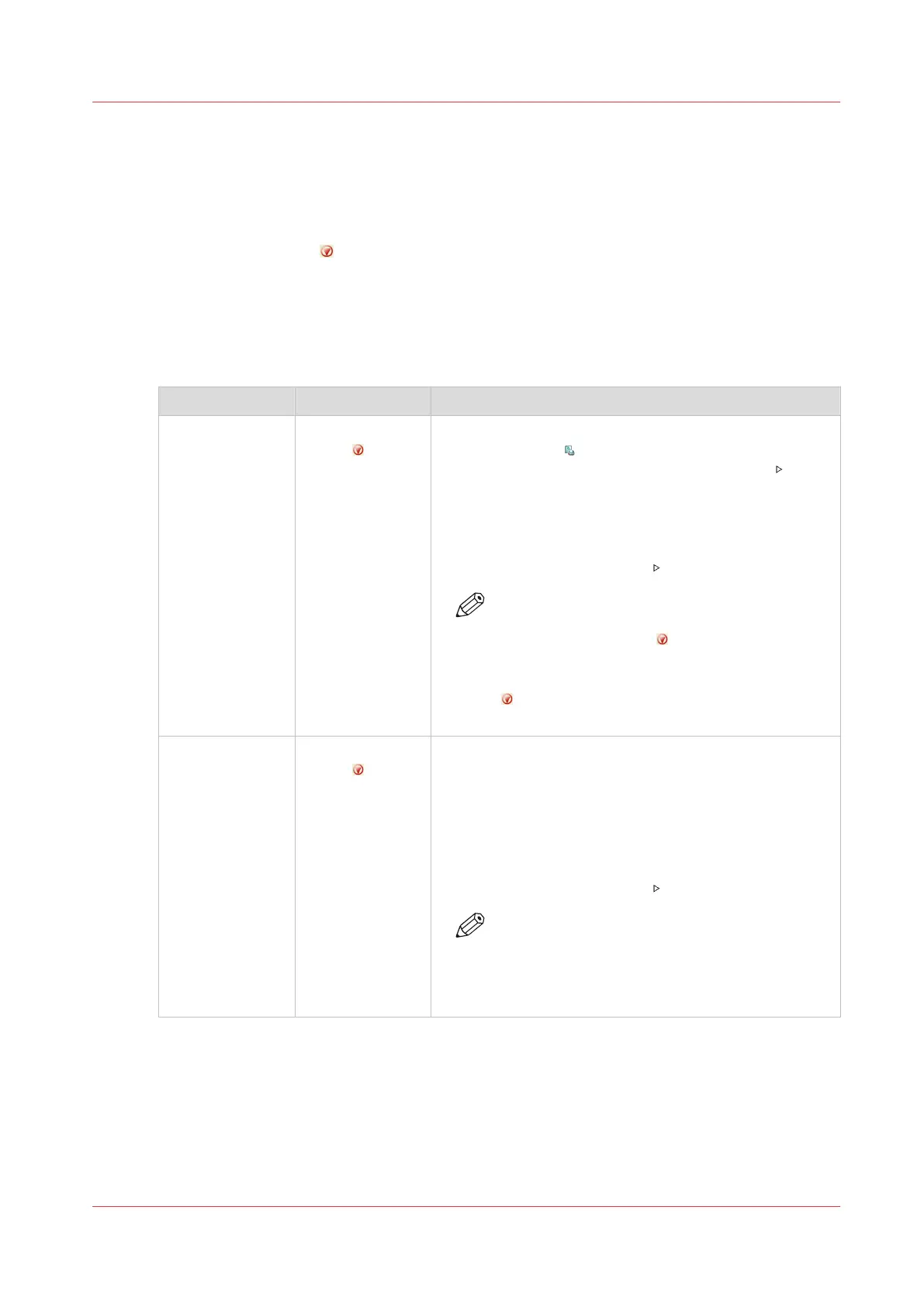
When to stop Action Description
After a set Press the Stop
button one
time
• The printer stops when the currently printed set of the
active print job is completed.
• The dashboard displays the [Resume] button with a
vertical green bar, and the message [Stopping after
set...].
• When the set is completed, the vertical green bar
changes into red and the message [On hold] appears.
• Touch the [Resume] button
to continue printing.
NOTE
It depends on the set size and the moment you
press the Stop button when the printer will
stop. For example, when you have a large set
of 1,000 pages and you press the Stop button
after the first page, the printing will continue
for a couple of minutes.
As soon as possi-
ble
Press the Stop
button two
times
• The printer stops when the printer buffer is empty (as
soon as possible).
• The dashboard displays the [Resume] button with a
vertical red bar, and the message [Stopping as soon
as possible...].
• When the printer buffer is empty, the message [On
hold] appears.
• Touch the [Resume] button
to continue printing.
NOTE
The buffer can contain up to 50 pages. Be-
cause the printer stops when the buffer is
empty, it is possible that the last printed set is
not complete.
4
Stop the Printer
Chapter 9 - Carry Out Print Jobs
191
Canon varioPRINT DP line


 To Next Page
 Loading...