dvanced Guide
> Changing the Printer Settings >
Changing Printer Settings from Your Computer > Saving a Changed
Printing Profile
Saving a Changed Printing Profile
You can assign a name to the settings made on the Main, Page Setup, and Effects tabs and save them
as a printing profile. The saved printing profile can be retrieved and used from the Profiles tab at any
time. Unnecessary printing profiles can be deleted at any time.
The procedure for registering a printing profile is as follows:
Registering a printing profile
1.
Open the printer driver setup window
2.
Set the necessary items
Make your desired settings on the Main, Page Setup, and Effects tabs.
3.
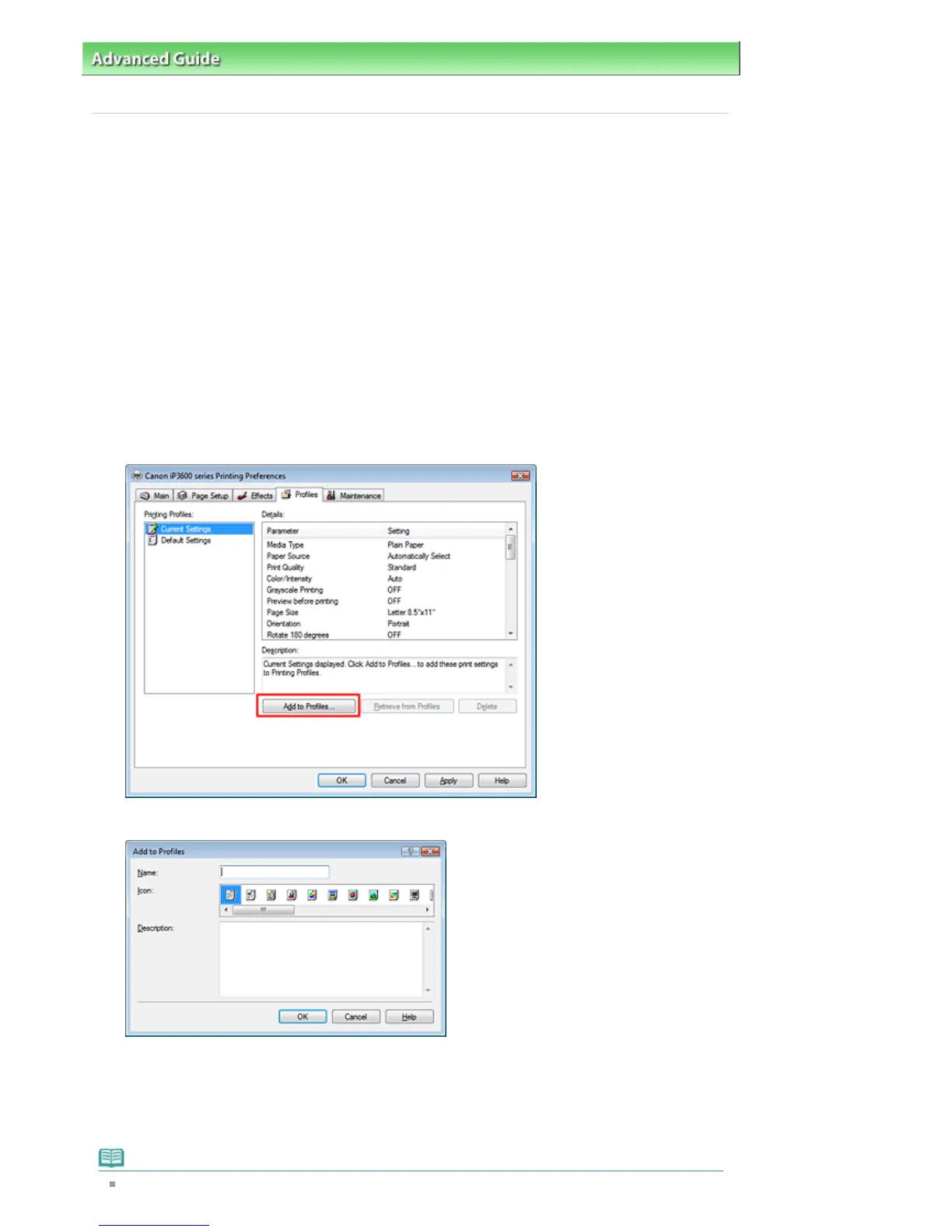
On the Profiles tab, click Add to Profiles...
The Add to Profiles dialog box opens.
4.
Save the settings
Set Name, Icon, and Description, then click OK.
The profile is saved and the Profiles tab is displayed again.
The name and icon are added to the Printing Profiles list.
Note
If


 To Next Page
 Loading...