Outputting
2
Basic
Operation
44
Starting Output
When P. 42, "Getting Ready to Receive Data from a Computer" is completed, you can start output. To output,
the following procedure is required
Create output data.
Create the output data using application software such as Adobe Illustrator. For information on how to create
the data, refer to the documentation of your application software.
Send the output data to this machine using the software RIP.
Use the included software RIP "Roland VersaWorks Dual" (hereinafter called "VersaWorks Dual"). For informa-
tion on how to install and use VersaWorks Dual, refer to the "Roland VersaWorks Dual Quick Start Guide" and
the HELP of VersaWorks Dual.
Remaining Ink during Printing
Ensure there is sufcient remaining ink
When the ink in the subtanks runs out (or, if using 4 colors, when all ink of the same color runs out) during
printing, printing pauses. When printing pauses, the coloring at the seam may be altered when printing re-
sumes. To prevent unexpected pauses during printing, you can check the approximate amount of remaining
ink on the screen. Particularly before performing lengthy printing, we recommend that you check the amount
of remaining ink.
P. 103, "Checking the Amount of Remaining Ink"
If a Cover Opens during Operation
"If the front cover, left cover, or right cover opens during an operation in which the print-head carriage (here-
inafter referred to as ""carriage"") moves such as printing or cutting, the machine makes an emergency stop.
When an emergency stop occurs, a message prompting you to close the cover will be displayed on the screen.
Follow the instruction shown on the screen and close the cover.
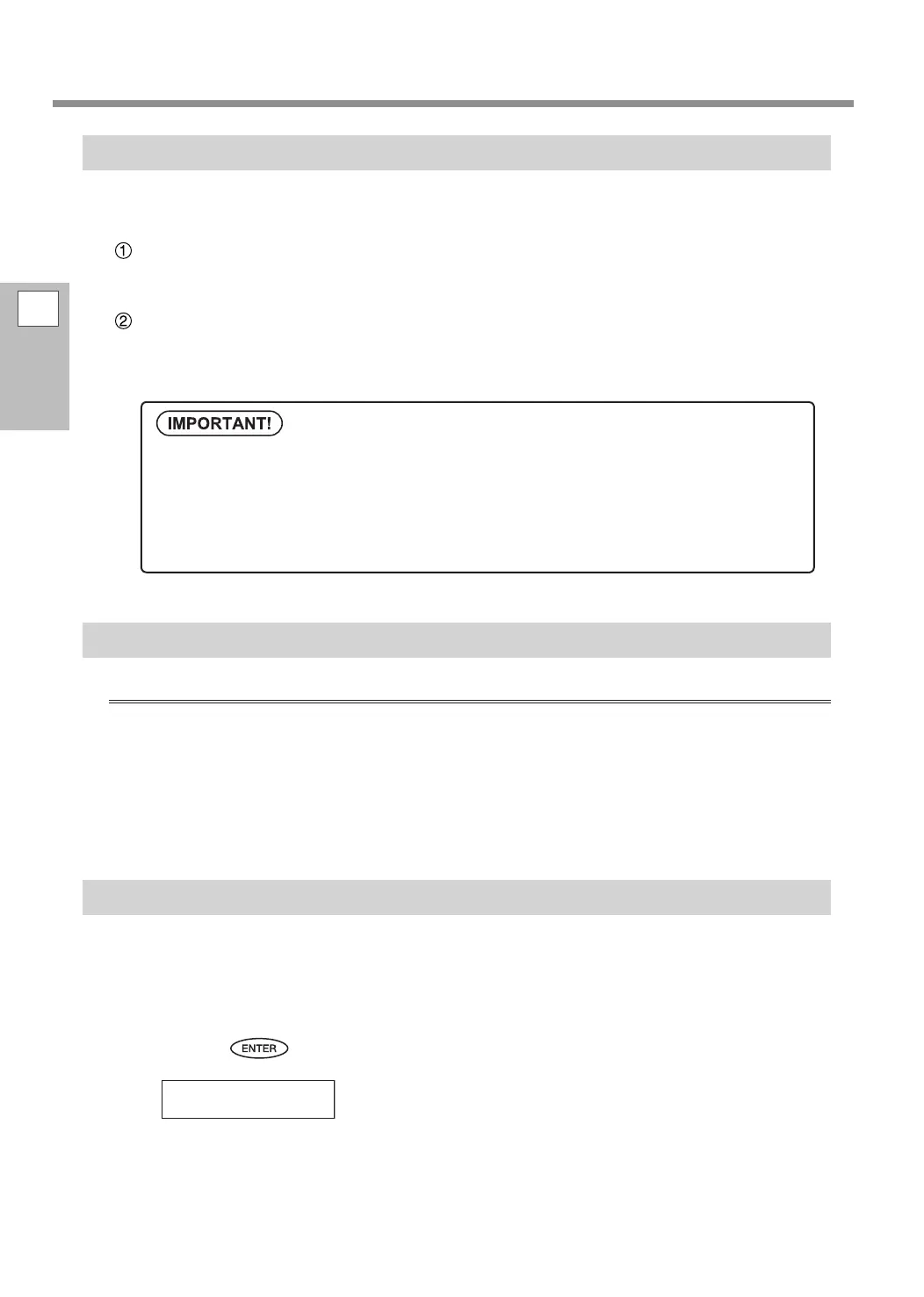
After you close the cover, the following message appears on the screen. Follow the instruction shown on the
screen and press
. The machine recovers from the error and is then able to continue operations."
If the message shown above does not appear even after you close the cover, a nonrecoverable error may have
occurred. Refer to P. 132, "An Error Message Appears".
Points that must be observed
When you are performing printing, be sure to attach the media clamps. Otherwise the edges of
the media may warp and catch on the print heads.
During output, do not touch the media. Doing so may obstruct the media feed or cause the media
to rub against the print heads, which may result in a paper jam or damage to the print heads.
Keep the loading lever raised when the machine is not in use.
PRESS THE ENTER
KEY TO CONTINUE


 To Next Page
 Loading...