3
Setting the White Balance
N
164
Custom white balance enables you to manually set the white balance
for a specific light source. Make sure to perform this procedure under
the light source at the actual location of the shoot.
1
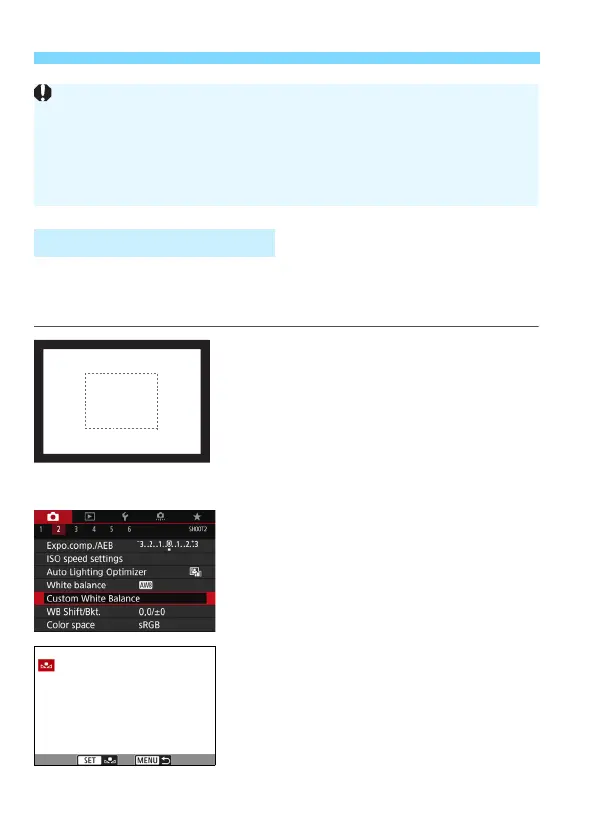
Shoot a white object.
Look through the viewfinder and aim
the entire dotted line box (shown in the
illustration) over a plain, white object.
Focus manually and shoot with the
standard exposure set for the white
object.
You can use any white balance setting.
2
Select [Custom White Balance].
Under the [
z
2
] tab, select [
Custom
White Balance
], then press <
0
>.
The custom white balance selection
screen will appear.
3
Import the white balance data.
Turn the <
5
> dial to select the
image captured in step 1, then press
<
0
>.
On the dialog screen that appears,
select [
OK
] and the data will be
imported.
O Custom White Balance
Cautions for Setting [Qw] (White priority)
The warm color cast of subjects may fade.
When multiple light sources are included on the screen, the warm color
cast of the picture may not be lessened.
When using flash, the color tone will be the same as [Q] (Ambience
priority).


 To Next Page
 Loading...