Garmin G950 Pilot’s Guide for the Pilatus PC-6
190-00870-02 Rev A434
ADDITIONAL FEATURES
SYSTEM
OVERVIEW
FLIGHT
INSTRUMENTS
EIS
AUDIO PANEL
& CNS
FLIGHT
MANAGEMENT
HAZARD
AVOIDANCE
AFCS
ADDITIONAL
FEATURES
APPENDICESINDEX
8.8 ELECTRONIC CHECKLISTS
NOTE: Garmin is not responsible for the content of checklists. Checklists are created by the aircraft
manufacturer. Modifications or updates to the checklists are coordinated through the aircraft manufacturer.
The user cannot edit these checklists.
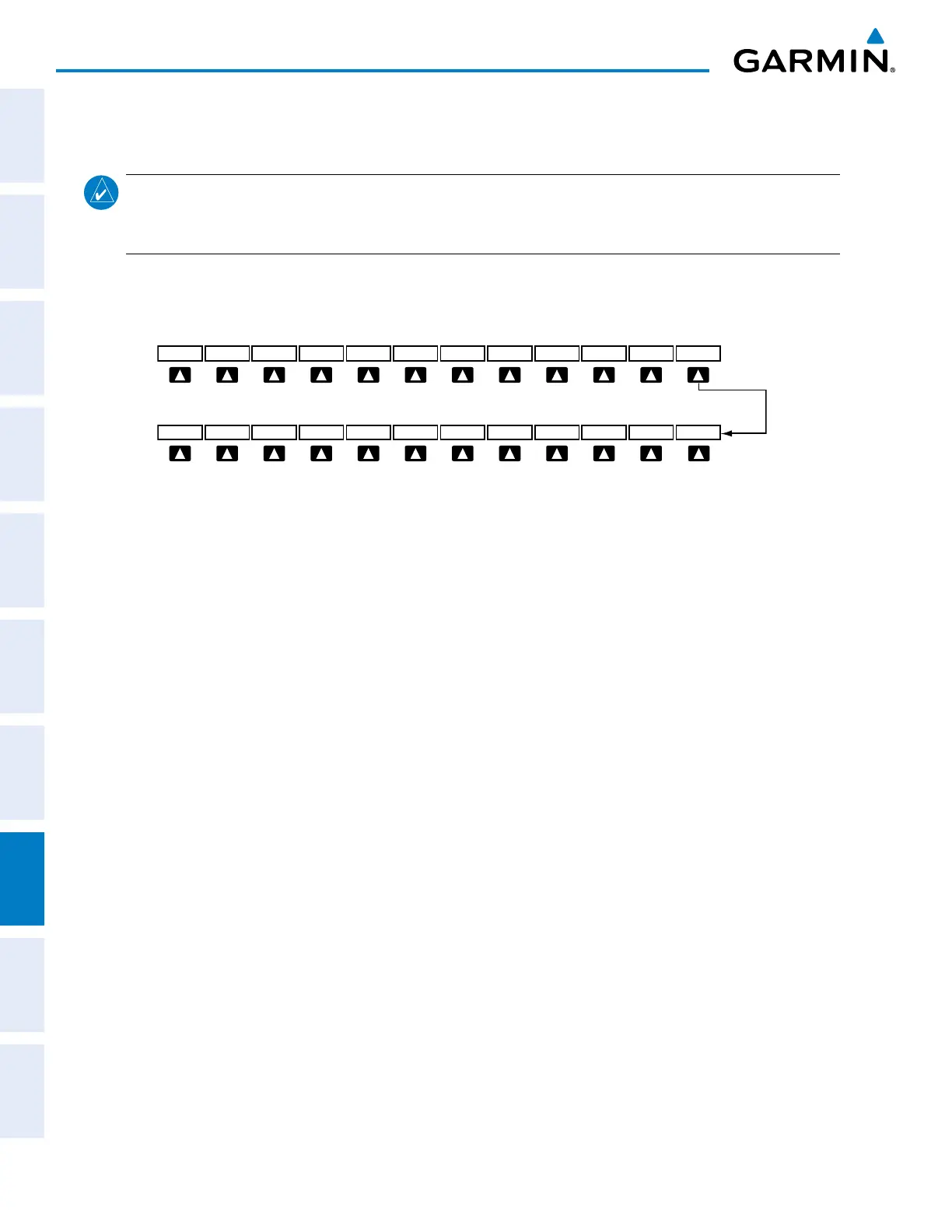
The checklist functions, when installed, are displayed on two levels of softkeys that are available on any MFD
page.
Figure 8-82 Checklist Softkeys
CHKLIST
DCLTR
SYSTEM
MAP
The CHECK Softkey label changes to UNCHECK
when the checklist item is already checked.
EXIT CHECKSYSTEM EMERGCY
SHW CHRT
The system accesses the checklists from an SD card inserted into the bezel slot. If the SD card contains an
invalid checklist file or no checklist, the Power-up Page messages display ‘Checklist File: Invalid’ or ‘Checklist
File: N/A’ (not available) and the CHKLIST Softkey is not available.
Accessing and navigating checklists:
1) From any page on the MFD, press the CHKLIST Softkey or turn the large FMS Knob to select the Checklist Page.
2) Turn the large FMS Knob to select the ‘GROUP’ field.
3) Turn the small FMS Knob to select the desired procedure and press the ENT Key.
4) Turn the large FMS Knob to select the ‘CHECKLIST’ field.
5) Turn the FMS Knob to select the desired checklist and press the ENT Key. The selected checklist item is
indicated with white text surrounded by a white box.
6) Press the ENT Key or CHECK Softkey to check the selected checklist item. The line item turns green and a
checkmark is placed in the associated box. The next line item is automatically selected for checking.
Either FMS Knob can be used to scroll through the checklist and select the desired checklist item.
Press the CLR Key or UNCHECK Softkey to remove a check mark from an item.
7) When all checklist items have been checked, ‘*Checklist Finished*’ is displayed in green text at the bottom left
of the checklist window. If all items in the checklist have not be checked, ‘*CHECKLIST NOT FINISHED*’ will be
displayed in yellow text.\
8) Press the ENT Key. ‘GO TO NEXT CHECKLIST?’ will be highlighted by the cursor.
9) Press the ENT Key to advance to the next checklist.
10) Press the EXIT Softkey to exit the Checklist Page and return to the page last viewed.


 To Next Page
 Loading...