4-3. RPN CORRECT Menu
The RPN CORRECT menu enables various operations such as manual registration, manual deletion, and automatic
detection of RPN point to be corrected.
4-3-1. Executing Auto Detection
• The Auto Detection menu enables automatic detection of RPN point.
• When the Auto Detection menu is selected, the Execute and Cancel choices appear. In addition, selecting Execute
starts RPN Auto Detection.
• The RPN point detected by Auto Detection is added to the RPN correction point.
Note
Auto Detection cannot be executed under the following settings.
• When Video Format other than HD422 50/1080/59.94i is selected
• When color bar signal is output.
• When the Test Saw is set to On
Change the settings to execute Auto Detection.
4-3-2. Channel Setting
• The Channel menu enables specifying color components of pixels on the cursor.
• When the RPN correction point is moved to an already-registered correction point by the Cursor Next or Cursor
Prev operation, the channel of the registered correction point is displayed automatically.
4-3-3. Cursor Setting
• The Cursor menu enables the crosshair cursor indicating the RPN correction point to be displayed or hidden when
registering RPN manually.
• When Cursor is set to On, the crosshair cursor indicating the RPN correction point is displayed superimposed on
the video signal.
• The signal of the pixel located at the center of the crosshair cursor is replaced with black.
• Cursor is always set to Off when the power is turned on.
4-3-4. Cursor H Position Setting
• The Cursor H Position menu enables the user to change the horizontal position of the RPN correction point within
the effective video signal range in the manual registration of the RPN point.
• When the RPN correction point is moved to an already-registered correction point by the Cursor Next or Cursor
Prev operation, the display automatically switches to the numeric value of the horizontal position of the RPN point.
4-3-5. Cursor V Position Setting
• The Cursor V Position menu enables the user to change the vertical position of the RPN correction point within the
effective video signal range in the manual registration of the RPN point.
• When the RPN correction point is moved to an already-registered correction point by the Cursor Next or Cursor
Prev operation, the display automatically switches to the numeric value of the vertical position of the RPN point.
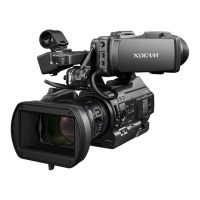
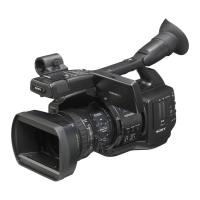
PMW-300
4-6


 To Next Page
 Loading...