92 Installation and Service Guide
Performing Backup and Restore
To restore the system by booting from a bootable USB flash drive
• Follow the instructions described in “To restore the system from bootable backup media” on page 92. You need to
connect a monitor, keyboard, and mouse to the E-35A.
Using bootable backup media to restore
Use the following procedure when you the E-35A does not boot from the built-in hard disk drive.
You can restore from the bootable backup media (including the Fiery factory image) created by using the Fiery System
Restore.
To restore the system from bootable backup media
To restore from the bootable media, you must have created a backup media. If you have created a backup as bootable
backup media, follow these instructions. You can use this procedure to install the system software after you replaced
the new hard disk drive.
1 Shut down the E-35A.
2 Attach the bootable USB backup media to the E-35A.
Be sure to not attach other USB devices to the E-35A.
3 Press the power button to turn on the E-35A.
The E-35A will boot from the bootable USB backup media.
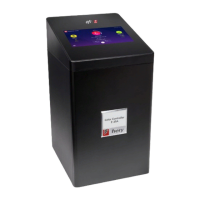
4 Follow the instructions on the Fiery QuickTouch display or the monitor (if available) to restore the backup image.
Platform Utilities
Following utilities are available when you select Platform Utilities.
• Erasing hard disks
• Advanced backup management
• Launching Windows Task Manager
Note: The Platform Utilities is available only on the monitor.
Erase data from hard disk drive(s)
If selected, the following methods are provided:
• Randomized erase for writing random data to all disk sectors before writing zero.
• Quick erase for writing zeroes to all disk sectors.


 To Next Page
 Loading...