Chapter 5 Operation
67
VIDEO SYSTEM OTV-SI
5.5 Color adjustment
Color adjustment with auto white balance
The white balance function automatically adjusts this instrument to the
videoscope or camera head being used. The white balance function can be
adjusted by using the white balance switch on the front panel, remote control
switches or the keyboard (optional).
Using the white balance switch on the front panel
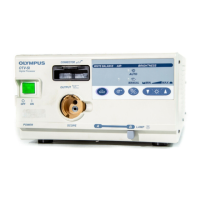
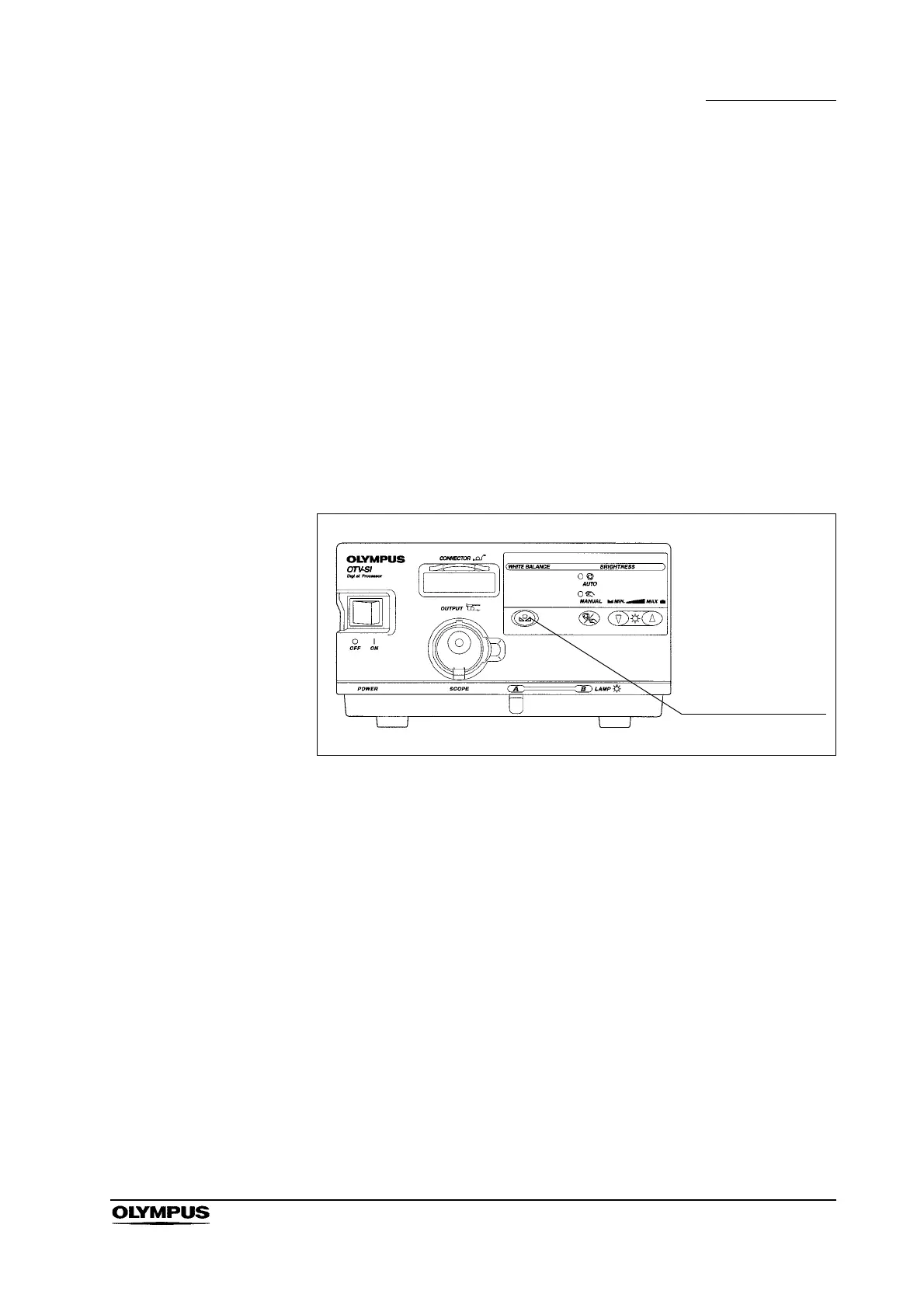
Point the endoscope at a clean, white surface (gauze, etc.) and press the white
balance switch for a few seconds (see Figure 5.21). Make sure that the distal
end of the endoscope is not exposed to strong extraneous light.
Figure 5.21
Using the menu
1. If the video monitor does not display the menu, press the remote control
switch for execution or for selection, the “F1”, “Enter”, “ ”, “ ”, “” or “”
key on the keyboard to display the menu.
2. Press the remote control switch for selection, the “” or “” key on the
keyboard and select “NEXT” (see Figure 5.6 on page 57).
3. Press the remote control switch for execution, the “Enter” or “ ” key on the
keyboard two times to display the menu bar shown in Figure 5.17 on
page 65.
4. Press the remote control switch for selection, the “” or “” key on the
keyboard and select “W/B” (White balance) (see Figure 5.22).


 To Next Page
 Loading...