Camera and Video 139
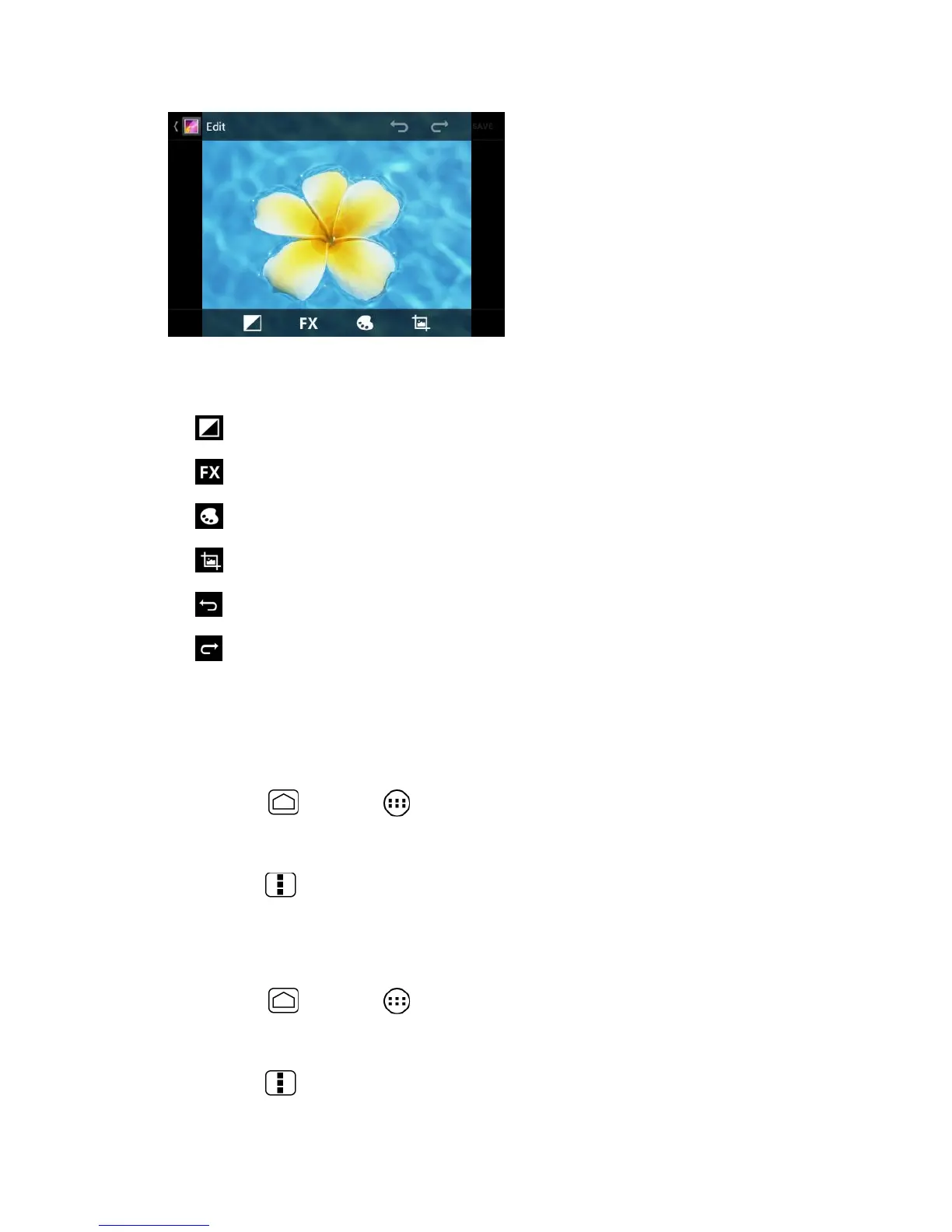
4. Touch the following icon to edit the picture and scroll left and right to select your favorite
effect.
to add exposure effect.
to add artistic effect.
to add color effect.
to add additional effect.
to undo the action.
to redo the action.
5. When finished, touch SAVE.
Rotate and Save a Photo
You can rotate your photos.
1. Press
Home
and touch >
Gallery
.
2. Touch an album and then touch a picture.
3. Press
Menu
and touch
Rotate Left
or
Rotate Right
.
Crop a Photo
You can crop your photos to the size you like.
1. Press
Home
and touch >
Gallery
.
2. Touch an album, and then touch a picture.
3. Press
Menu
and touch
Crop
. A crop box then appears on the photo.


 To Next Page
 Loading...