18. TT AND AIS DISPLAYS
18-5
18.2.3 How to filter AIS targets
1. Right-click [AIS] on the [TT/AIS] page in the [NAV Tools/Overlay box], select [Set-
ting] and open the [Setting.1] page.
(The [Setting.1] page can also be opened from the menu (MENU → [TT/AIS] →
[Setting] → [Setting.1].)
2. In the [AIS DISP Filter] window, set each item referring to the description below.
• Click the buttons of [Sleeping Class A] and [Sleeping Class B] to show [OFF] or
[ON] to hide or show those targets.
• Set the maximum range with [Max Range]. Any target beyond the range set
here will not be displayed.
• Set the ship speed for AIS targets, with [Min Ship Speed]. Any AIS target whose
speed is lower than that set here will not be displayed.
3. Click the [Save] button to save settings. Click the [Close] button to close the dialog
box.
Note: AIS and tracked target viewing limitations are as follows:
AIS and tracked targets are displayed on top of chart 1:1,000,001 for S57 charts.
18.2.4 How to set conditions for automatic activation of sleeping tar-
gets
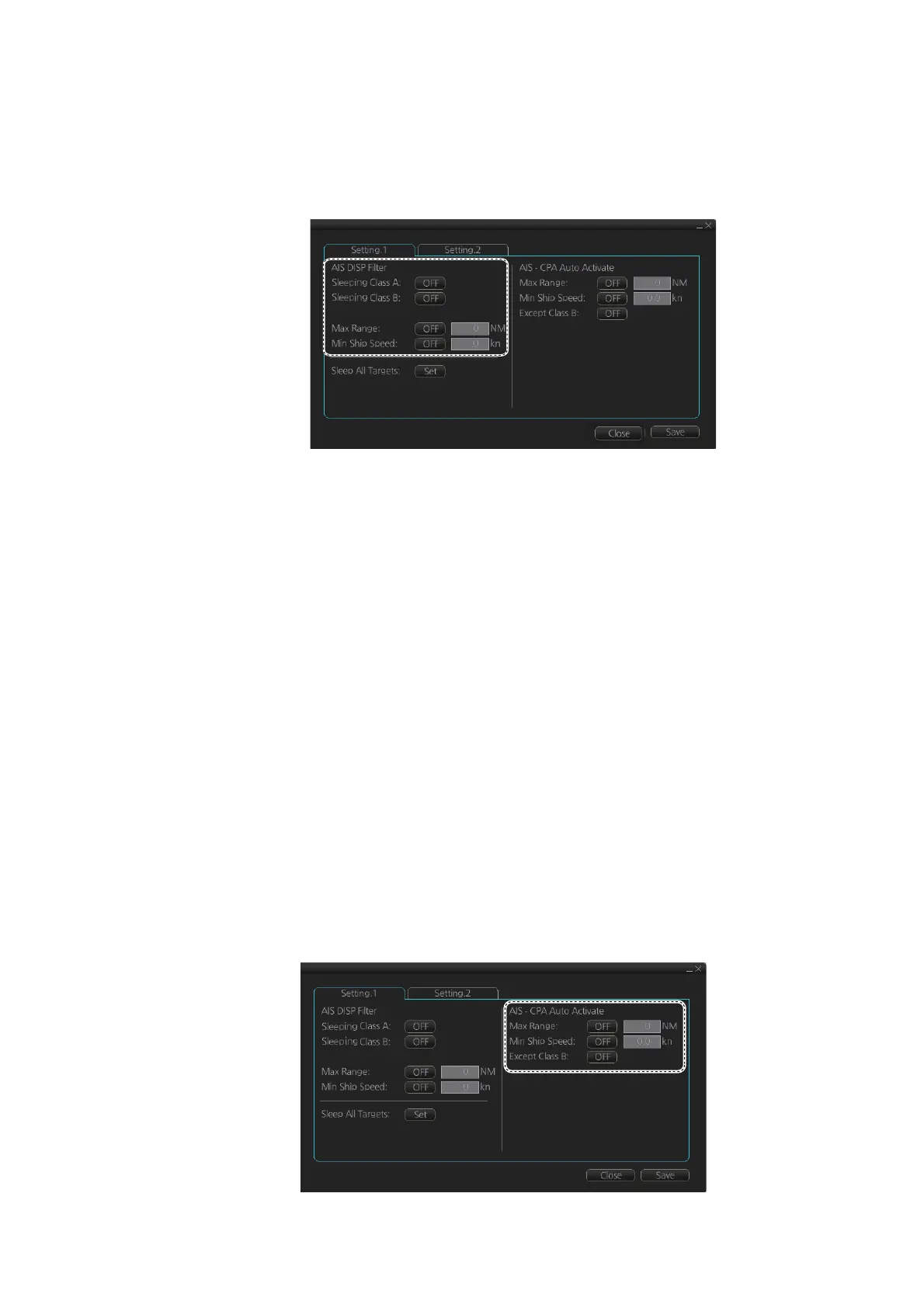
The AIS target automatic activation feature is turned on or off from the [TT/AIS] page
in the [Overlay/NAV Tools] box. Set the conditions for automatic activation as shown
below. The CPA/TCPA alarm must be active to get automatic activation of AIS targets.
Right-click [AIS] on the [TT/AIS] page in the [NAV Tools/Overlay box], select [Setting]
and open the [Setting.1] page.



 To Next Page
 Loading...