29
Saving configuration data on a PC
(Backup)
1
Access the URL of the remote controller
whose configuration data you want to
save using a web browser on the PC.
http://<IP address of unit>:52382/backup/
2
Access the save target remote controller.
For details about the
access method, see
“Accessing a remote controller” (page 28).
The [Backup/Restore] screen appears.
3
Click the [Backup] button.
The configuration data backup starts.
The default file name of the configuration
d
ata file is rm-ip500.cfg.
Restoring using configuration data
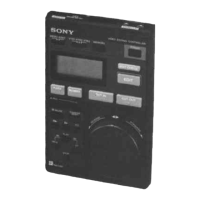
You can restore the unit or another RM-IP500
using controller configuration setup data saved
on a PC.
1
Access the remote controller you want to
restore using a web browser on the PC.
For details about the
access method, see
“Accessing a remote controller” (page 28).
The [Backup/Restore] screen appears.
2
Click the [Browse] button.
The file selection dialog appears.
3
Select the saved controller configuration
data.
4
Click the [Restore] button on the [Backup/
Restore] screen.
The restore process starts.
When the configuration data is restored, the
f
ollowing message appears and then the
remote controller reboots.
Updating the firmware
1
Download the firmware update from the
download site.
2
Uncompress the downloaded compressed
file.
3
Access the remote controller you want to
update using a web browser on the PC.
For details about the access method, see
“Accessing a remote controller” (page 28).
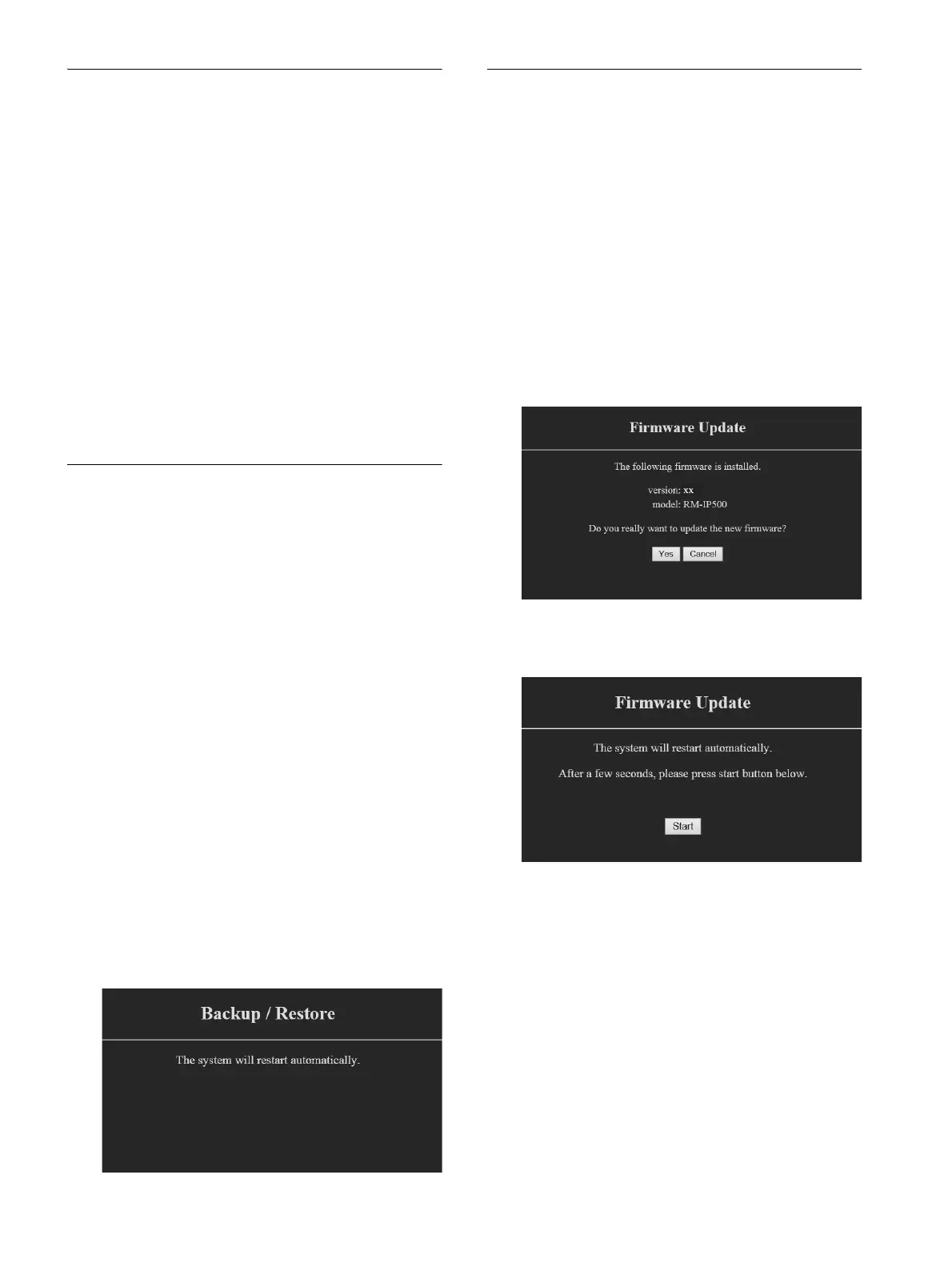
The [Firmware Update] screen appears.
4
Click [Yes].
The start screen appears.
5
Click the [Start] button.
The firmware selection screen appears.
6
Click the [Browse] button, and select the
firmware update.
7
Click the [OK] button.
The version update starts.
During the version update, “UPDATING” is
d
isplayed on the LCD panel of the unit.
When the version update is finished, an
up
date completion message appears and
the unit reboots automatically.
8
Press the RM MENU button to display the
RM menu.


 To Next Page
 Loading...