An icon and the job name represent a job. The icon indicates the state of the job, for example
printing .
Furthermore, the icon indicates the stop moments of the machine. For example, when the
setting [Confirm start of job] in the workflow profiles (see list of references below) is set to [On] or
when you use the [Stop after job] function.
2. The [Required media] Pane
The [Required media] pane displays the media that are required for each scheduled job. For each
required media, the media properties are displayed (see list of references below). The bars show
the availability of the media. The bars can have the following colors.
The colors of the bars
Color of the bar Description
Green The required media is available.
Orange The media is required in the future, but not available then. For example
because the paper trays do not contain sufficient sheets of the required
media.
Yellow The system cannot determine the exact number of sheets that is availa-
ble in the paper trays.
Red The media is required now, but not available. The job can only start
when you load the required media.
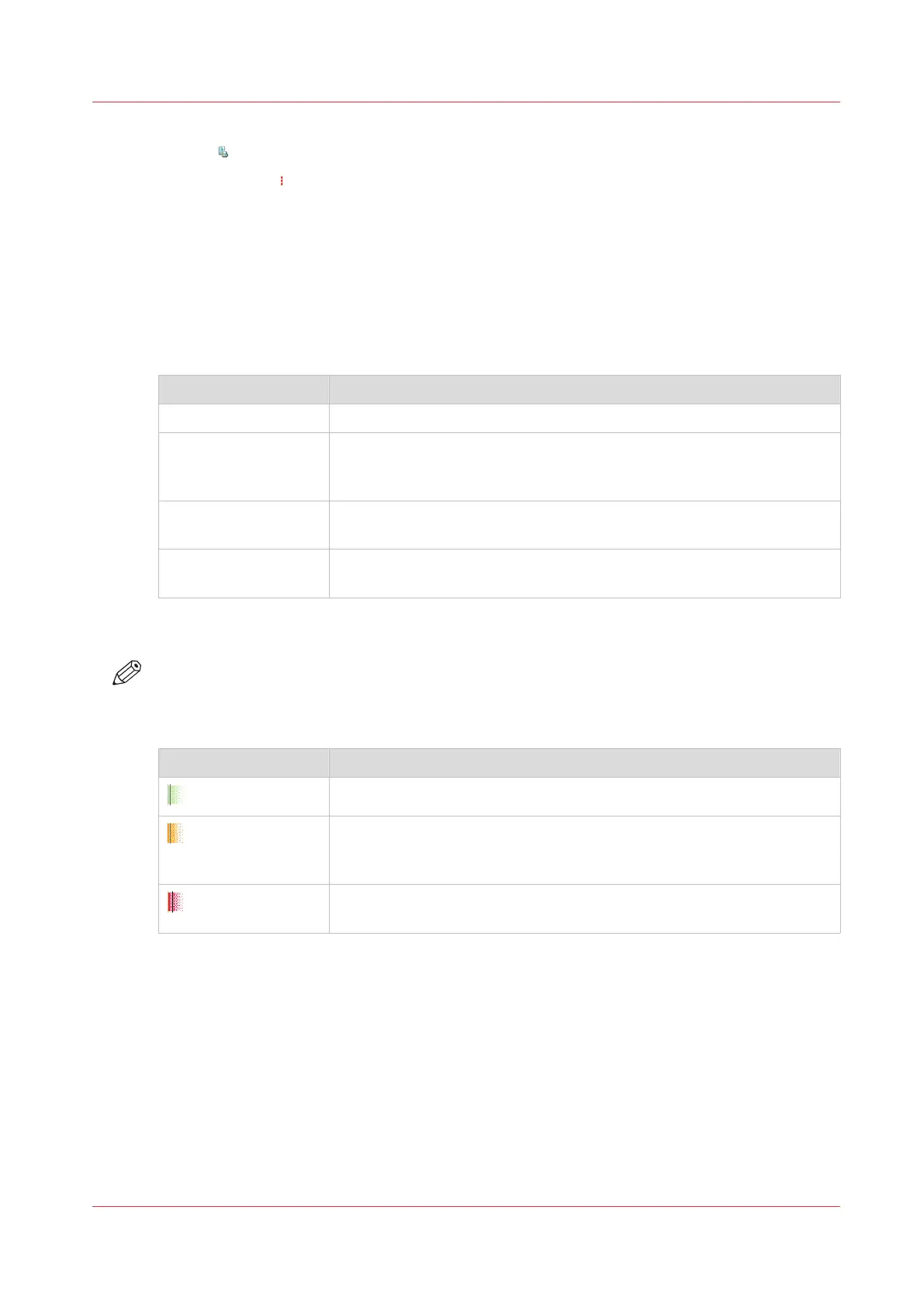
When you print small jobs, the bars for these jobs may not be completely visible. To prevent that
you do not see the status of these small jobs, the operator panel can show the following images.
NOTE
When you set the zoom control (5) to a shorter time-scale, in most cases the operator panel will
display bars for these small jobs.
The possible display of small jobs
Image Description
Green. The required media is available.
Orange. The media is required in the future, but not available then. For
example because the paper trays do not contain sufficient sheets of the
required media.
Red. The media is required now, but not available. The job can only
start when you load the required media.
3. The Media Toolbar
The media toolbar displays the following information for the media that is selected in the
[Required media] pane. Furthermore, the media type toolbar contains the [Load] button to load
and assign the required media.
Introduction to the [Schedule] View
Chapter 12 - Keep the system printing
271
Canon varioPRINT DP line


 To Next Page
 Loading...