Operation Loading the scanner
36
4522 207 12671/ * 2021-06-17
Pathology Scanner SG20 / SG60 / SG300
► Repeat the previous step until the rack is full or until all slides to be scanned have been
inserted in the rack.
⇨
The rack is ready for scanning.
NOTICE
Make sure that each slot in a rack contains only one slide.
Make sure all slides in the rack are placed tissue first with the label sticking out and facing up.
NOTICE
Incorrectly positioned slides can lead to skipped slides or unidentified slides in the IMS.
Unlocking and opening of the store door
Depending on the selected access policy, the user must be logged in before being allowed to
unlock the door. For more information, see chapter “Log in” on page 34.
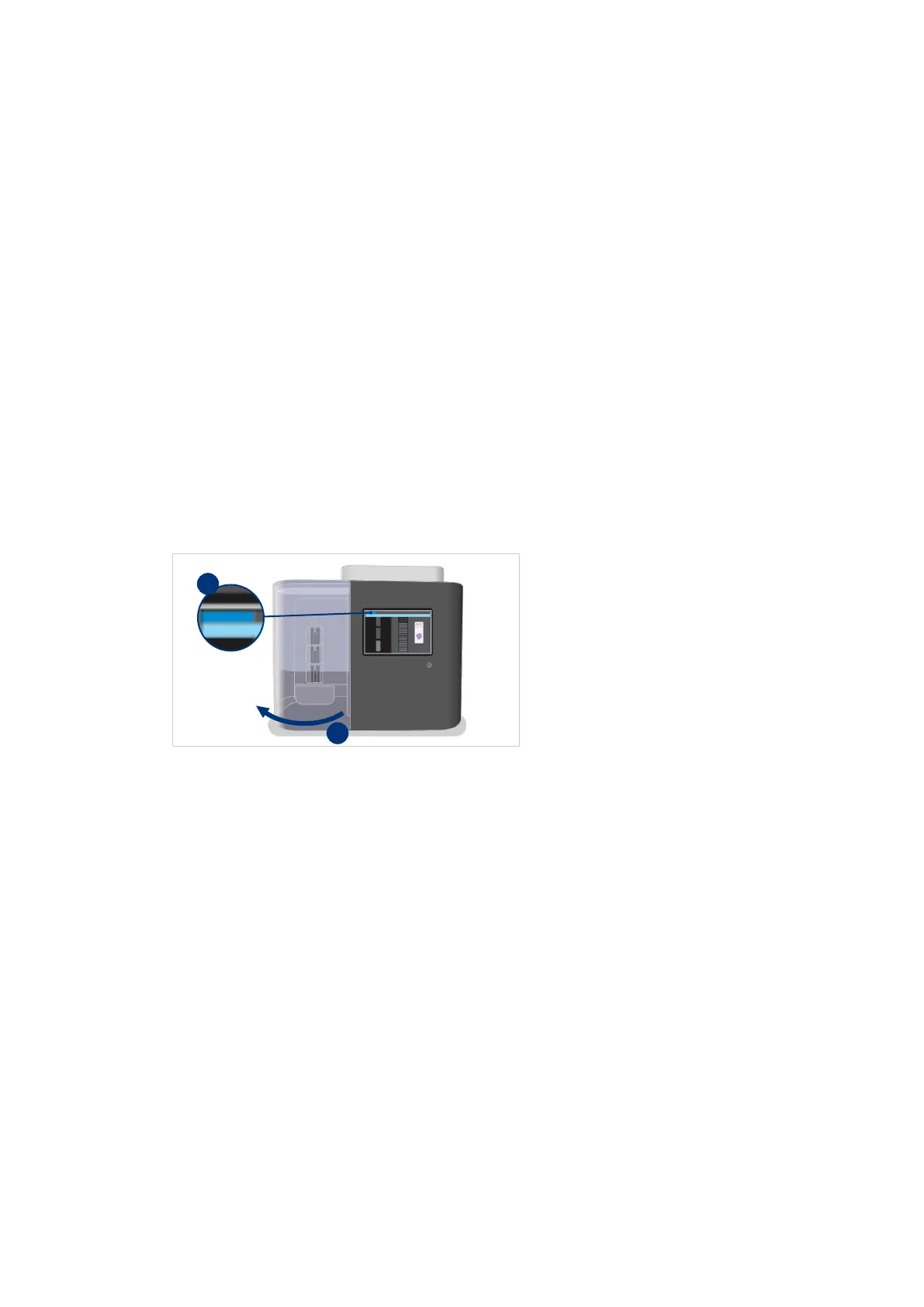
Fig. 20: Opening the store door
►
On the user interface select Unlock door (I). On the Pathology Scanner SG60 and SG300
models the store will lit.
⇨ The handler will return slides not being scanned to the original position in the store and
move to a safe position.
► Open and hold the door at the bottom while sliding it completely to the left (II).
⇨
Racks can be loaded and unloaded from the store.
Placing racks in the store
NOTICE
When loading or unloading racks to or from store, watch for sharp edges of slides. To prevent
cuts or other bodily injury, do not contact sharp edges.


 To Next Page
 Loading...