SETUP RECEIVE 5 - 16
Changing the TX Lock Password
1
Press
Menu/Set
,
2
,
0
,
1
.
2
Press or to choose
SET PASSWORD.
3
Press
Menu/Set
.
The screen prompts you to enter the
old password.
4
Enter the current password.
5
Press
Menu/Set
.
6
Enter a 4-digit number as a new
password.
7
Press
Menu/Set
.
The screen prompts you to re-enter
the new password.
8
Enter the new password again and press
Menu/Set
.
9
Press
Stop/Exit
.
Switching TX Lock ON
1
Press
Menu/Set
,
2
,
0
,
1
.
2
Press or to choose
SET TX LOCK.
3
Press
Menu/Set
. The screen
prompts you to enter the password.
4
Enter a 4-digit password, followed
by
Menu/Set
.
This is the same as the security password of the machine
already stored.
The screen displays ACCEPTED for 2 seconds, followed by
TX LOCK MODE - TX Lock is now switched ON.
If the password you enter at Step 4 is incorrect, the screen
would display WRONG PASSWORD. After 2 seconds the display
will then return to normal (displaying the date & time). You must
then start from Step 1 to set TX Lock.
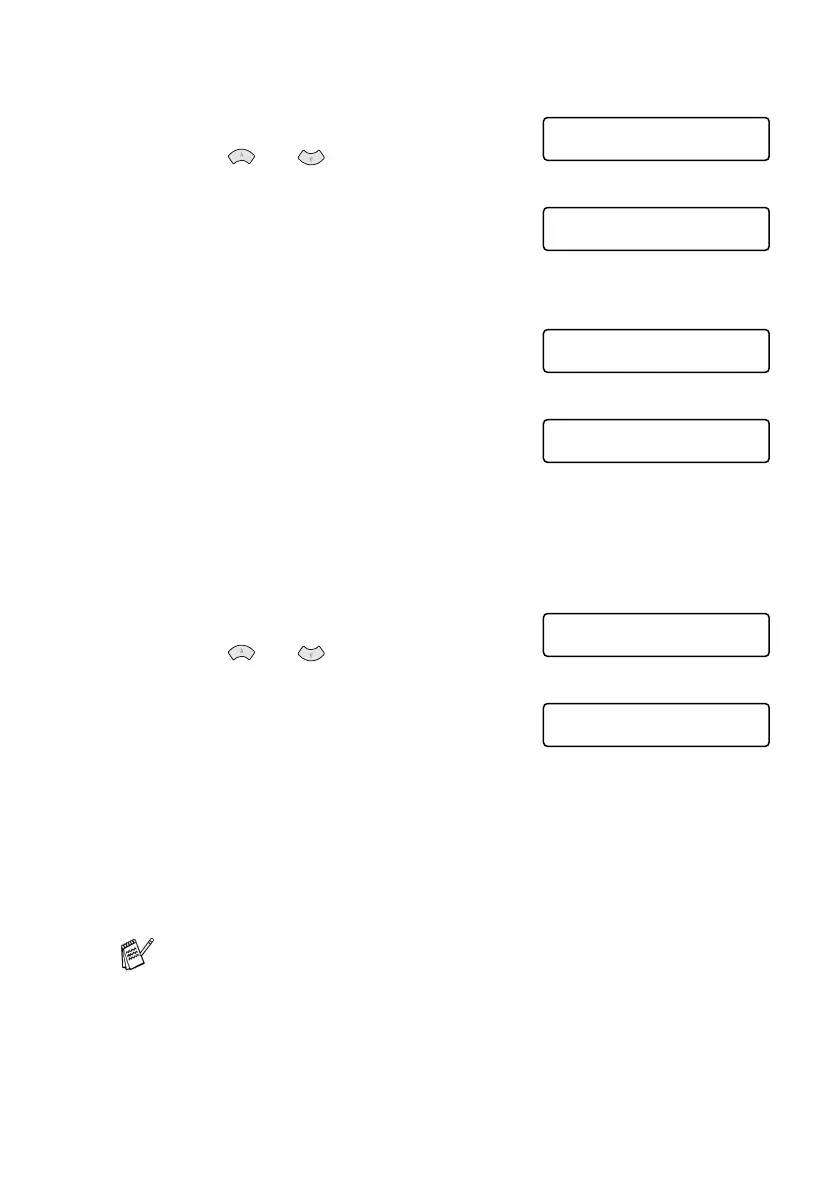
MISCELLANEOUS
1.TX LOCK
TX LOCK
OLD PASSWD:XXXX
TX LOCK
NEW PASSWD:XXXX
TX LOCK
VERIFY:XXXX
MISCELLANEOUS
1.TX LOCK
TX LOCK
PASSWORD:XXXX


 To Next Page
 Loading...