11. SIRIUS/XM SATELLITE WEATHER RECEIVER (BBWX3) OPERATIONS
11-4
11.2.2 How to download the NavCenter weather data
1. Open the home screen, then tap [Settings] - [General].
2. Tap [Wireless LAN Settings].
3. Turn on [Wireless].
4. After the internet connection is established, tap the close button to exit.
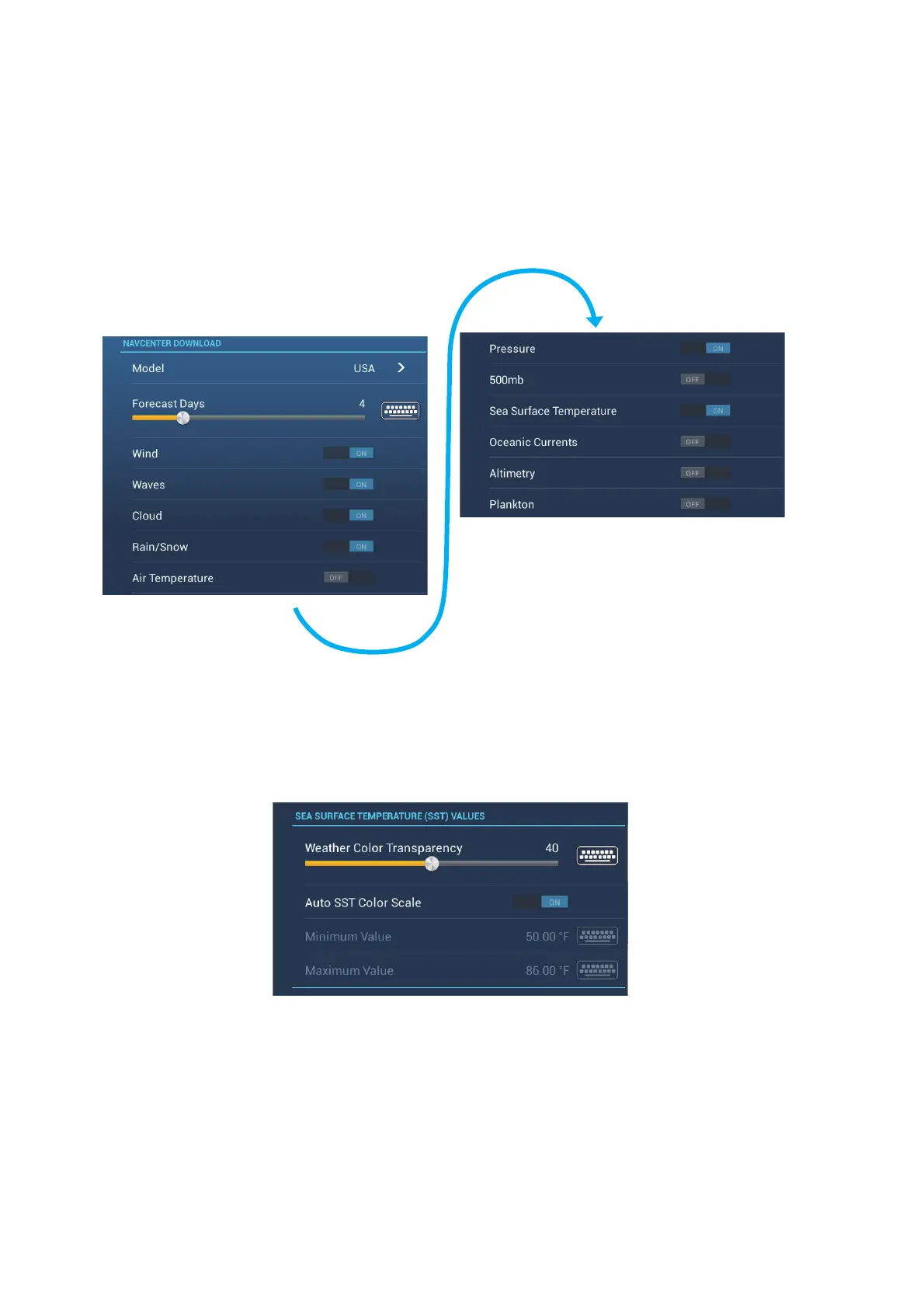
5. Open the home screen, then tap [Settings] - [Weather].
6. Tap the data model from [Model] in the [NAVCenter Download] section. (The op-
tions are [USA] and [Worldwide].)
7. Drag the slider in [Forecast Days] to select how many days’ data to download.
8. Turn on the items to receive, from [Wind] to [Plankton].
9. For [Sea Surface Temperature], set the following menu items.
[Weather Color Transparency]: Adjust the degree of transparency for the weath-
er overlay. Use a large figure to increase the degree of transparency.
[Auto SST Color Scale]: Activate this feature to adjust the SST color scale auto-
matically according to the sea surface temperature.
[Minimum Value]: Set the minimum value for the SST color when [Auto SST Col-
or Scale] is deactivated.
[Maximum Value]: Set the maximum value for the SST color when [Auto SST
Color Scale] is deactivated.
10. Tap the close button to finish.


 To Next Page
 Loading...