Garmin G300 Pilot’s Guide
190-00921-00 Rev. D
Appendix B
222
System
Overview
Flight
InstrumentsEIS
COM
Interface
GPS
Navigation
Flight
Planning
Hazard
Avoidance
Additional
Features
Integrated
AutopilotAnnun/AlertsAppendixIndex
The percentage of memory used by the current track log appears at the top of
the Track Log Window. After the track log is cleared, it shows zero percent. When
the screen reaches 100%, the most recent track points start to overwrite the least
recent track points (if ‘Wrap’ is selected in the Record Mode Field). To avoid losing
track points, save the track log when it approaches the 99% mark.
The Save feature allows storage of up to 15 track logs.
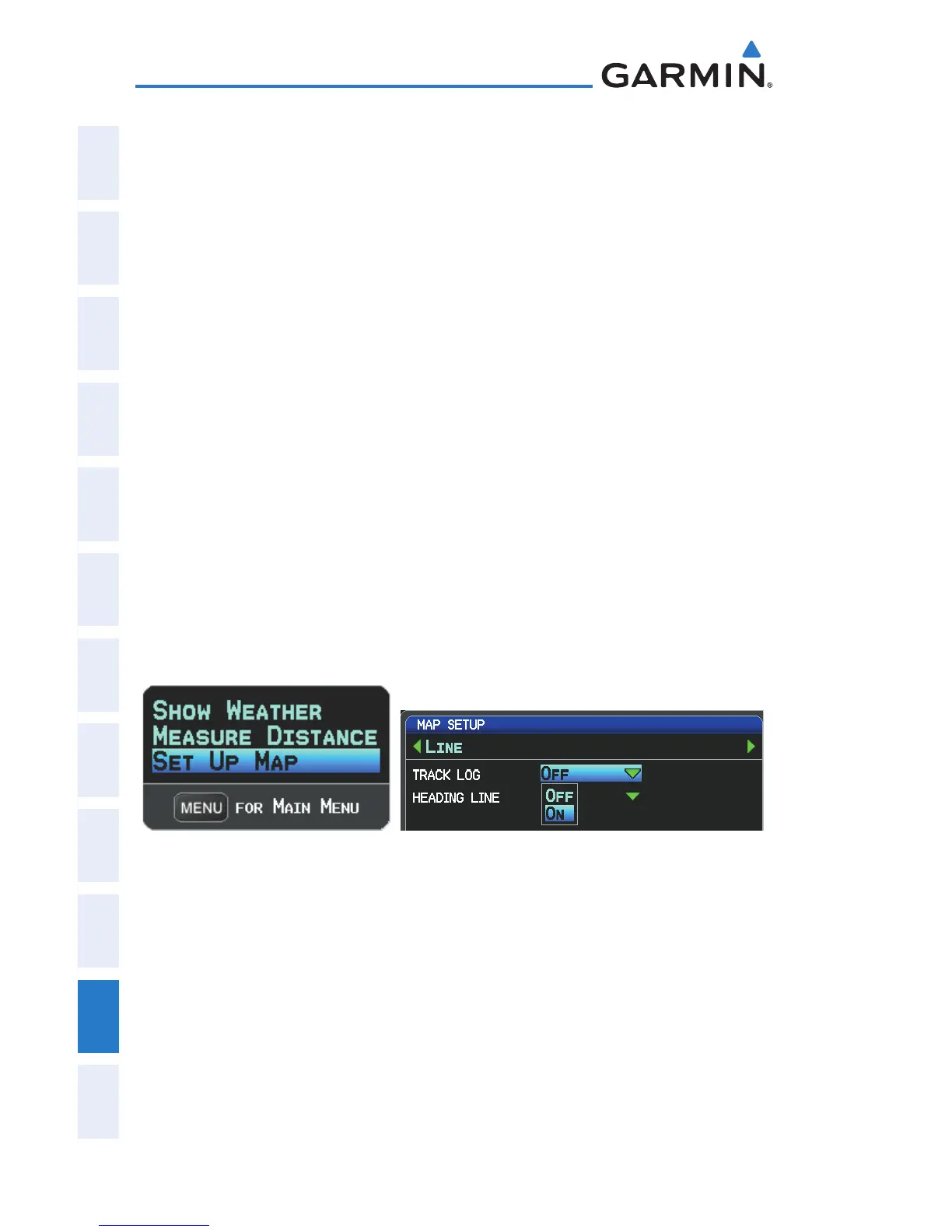
Displaying/removing the track log on the Map Page:
1)
From the Map Page, press the MENU Key. The Map Page Menu is
displayed. (The ‘Track Log’ option is not available from the Dual
Display PFD Main Menu).
2)
Turn or move the FMS Joystick to select ‘Set Up Map’ from the Map
Page Menu, and press the ENT Key.
3)
Turn the FMS Joystick to highlight the ‘Line’ options from the
horizontal list.
4)
Move the FMS Joystick to highlight the ‘Track Log’ field.
5)
Turn the FMS Joystick to select ‘On’ or ‘Off’, and press the ENT Key.
6)
Press the FMS Joystick, the CLR Key, or the EXIT Softkey to return to
the Map Page.
Map Page Menu
(Single Display)
Map Setup Page
Changing track log settings:
1)
From the Single Display or Dual Display MFD, press the MENU Key
twice. (The ‘Track Log’ option is not available from the Dual Display
PFD Main Menu).
2)
Turn or move the FMS Joystick to select ‘Track Log’ from the Main
Menu, and press the ENT Key.
3)
Move the FMS Joystick to highlight the desired field.


 To Next Page
 Loading...