Rockwell Automation Publication 2711P-UM008J-EN-P - April 2022 145
Chapter 4
Make a New VNC Connection to a Remote Terminal
To make a new VNC connection to another terminal, follow these steps.
1. Establish a VNC connection from a local terminal to a remote terminal
(see page 143
).
2. Click the New connection icon in the menu bar.
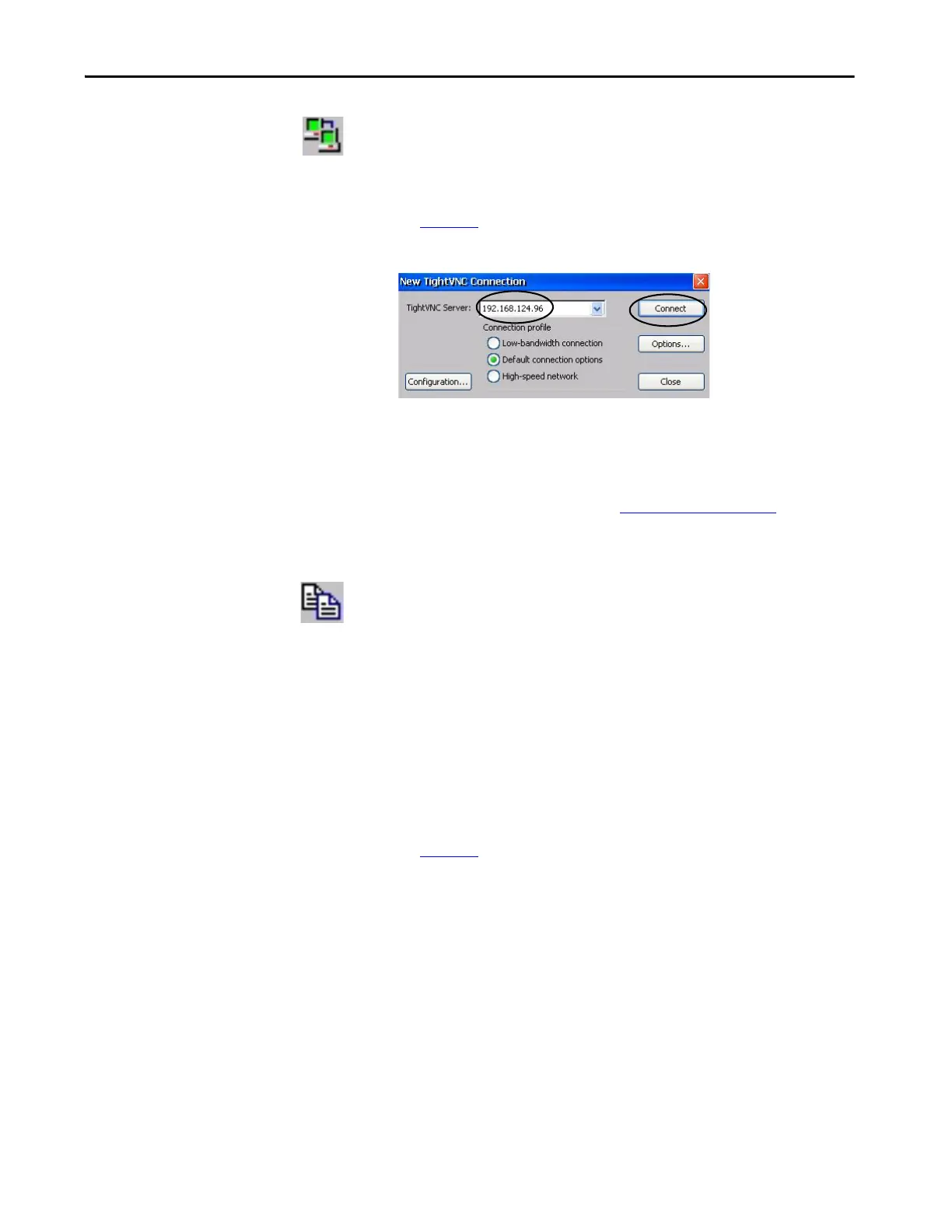
3. Enter the IP address of the new remote terminal that you want to
connect to and click Connect.
The local terminal creates a VNC connection to the new terminal.
Transfer Files Between a Local and a Remote Terminal
You can perform these tasks with the TightVNC File Transfer dialog box:
• Transfer files and folders between connected terminals
• Rename a selected file or folder
•Create a folder
• Delete a selected file or folder
To transfer files between the local terminal and the remote terminal, follow
these steps.
1. Establish a VNC connection from a local terminal to a remote terminal
(see page 143
).
2. Click the Transfer files icon in the menu bar.
3. Select the folder or files that you want to transfer.
4. Click the upload (>>) or download (<<) files icon.
5. Click Yes.
TIP Select an IP address from the pull-down menu, or enter an IP
address by using a USB keyboard or soft input panel on the local
terminal (viewer) (see Soft Input Panels
on page 124).



 To Next Page
 Loading...