- 103 -
3. Scan
Saving Scanned Data in USB Memory
To save scanned data to USB Memory, follow the procedure below.
1
Press [Scan] or the (SCAN) button.
2
Set a document in the ADF or on the document glass.
3
Insert USB Memory into the USB port.
Insert USB Memory straight into the USB port. Inserting USB Memory at a wrong angle may damage the USB
port.
4
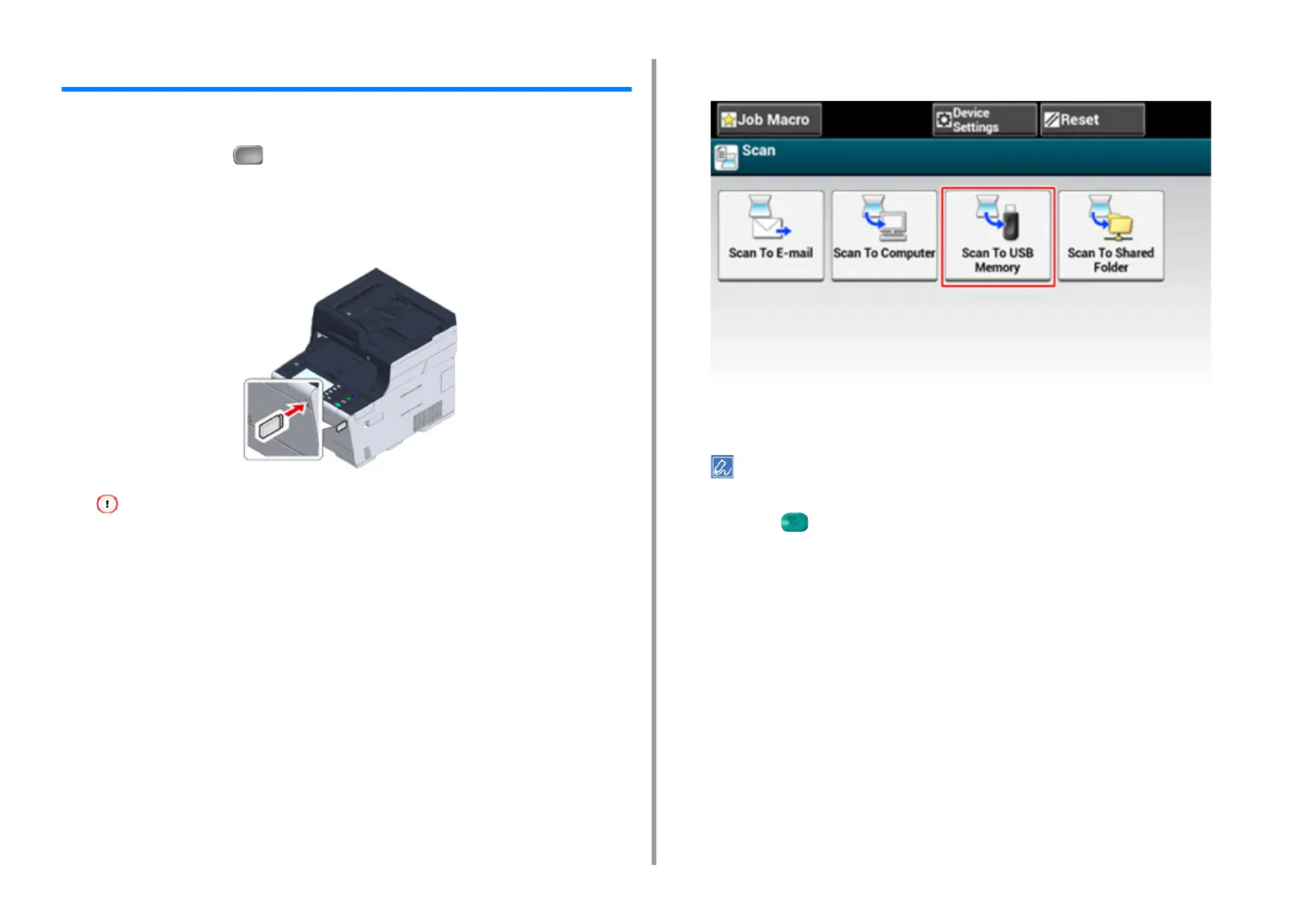
Press [Scan To USB Memory].
5
Set scan settings if necessary.
Press [Preview] on the [Advanced] tab to preview the scanned image.
6
Press the (START) button.
7
When a message is displayed to inform you that you can remove USB
Memory from the port, remove it.


 To Next Page
 Loading...