SmartPAC 2 User Manual 1126700
Program Mode 5-3
Creating a New Tool
(PROGRAM – GO TO THE TOOL MANAGER – select tool – F7-NEW TOOL)
To create a new tool, do the following:
1. On the Tool Manager screen, press F7 (New Tool). The Numeric Entry or Alphanumeric
Entry window (see Figure 5-3) displays, depending on whether you selected Numeric or
Alphanumeric tool number mode in Initialization.
2. Key in the desired tool number, following the directions displayed in the applicable
window.
3. Press ENTER after keying in a numeric tool number or F6 after keying in an
alphanumeric tool number. The window shown in Figure 5-4, page 5-4 displays.
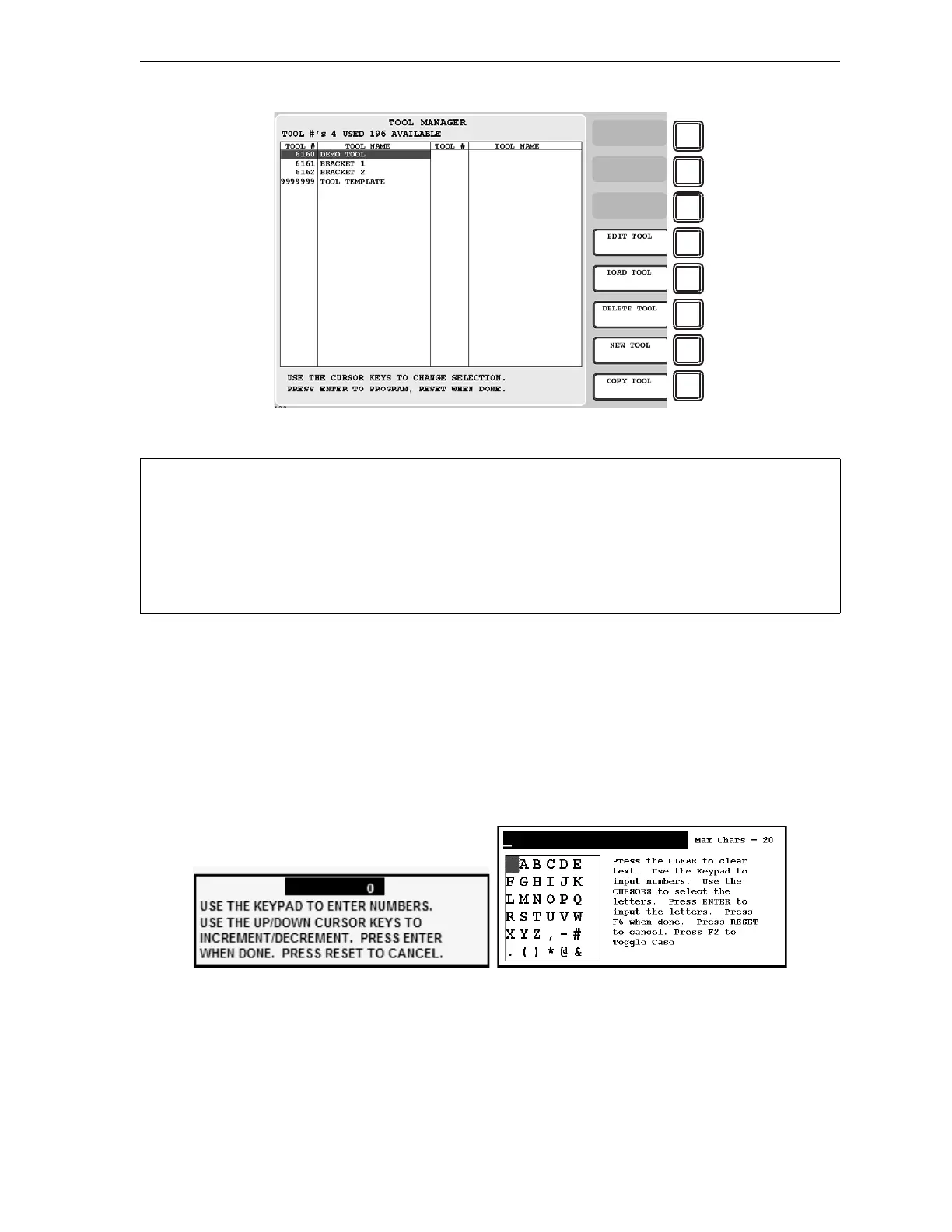
Figure 5-2. Tool Manager Screen
The Tool Manager screen sorts the tool list based on the setting for TOOL NUMBER MODE in
Initialization (see page 4-4).
• If the setting is NUMERIC, tools are sorted by tool number
• If the setting is ALPHA-NUMERIC, tools are sorted alphabetically by tool name
In the example shown in Figure 5-2, tools are sorted by tool number.
Figure 5-3. Numeric Entry Window (Left); Alphanumeric Entry Window (Right)



 To Next Page
 Loading...