SmartPAC 2 User Manual 1126700
SmartPAC to SmartPAC 2 Upgrade D-13
Restoring Tools from a Laptop
To use the SBR program to restore backed-up tools via a connected laptop, refer to the “Using
SBR to Upgrade from SmartPAC 1 to SmartPAC 2” section of the SmartPAC Backup and
Restore Instruction Sheet, which is provided with the SBR software.
Restoring Tools from a Network Server
To restore backed-up tools from a network server, perform the following steps:
1. On the Backup/Restore Control Menu in Initialization mode on the SmartPAC 2, press the
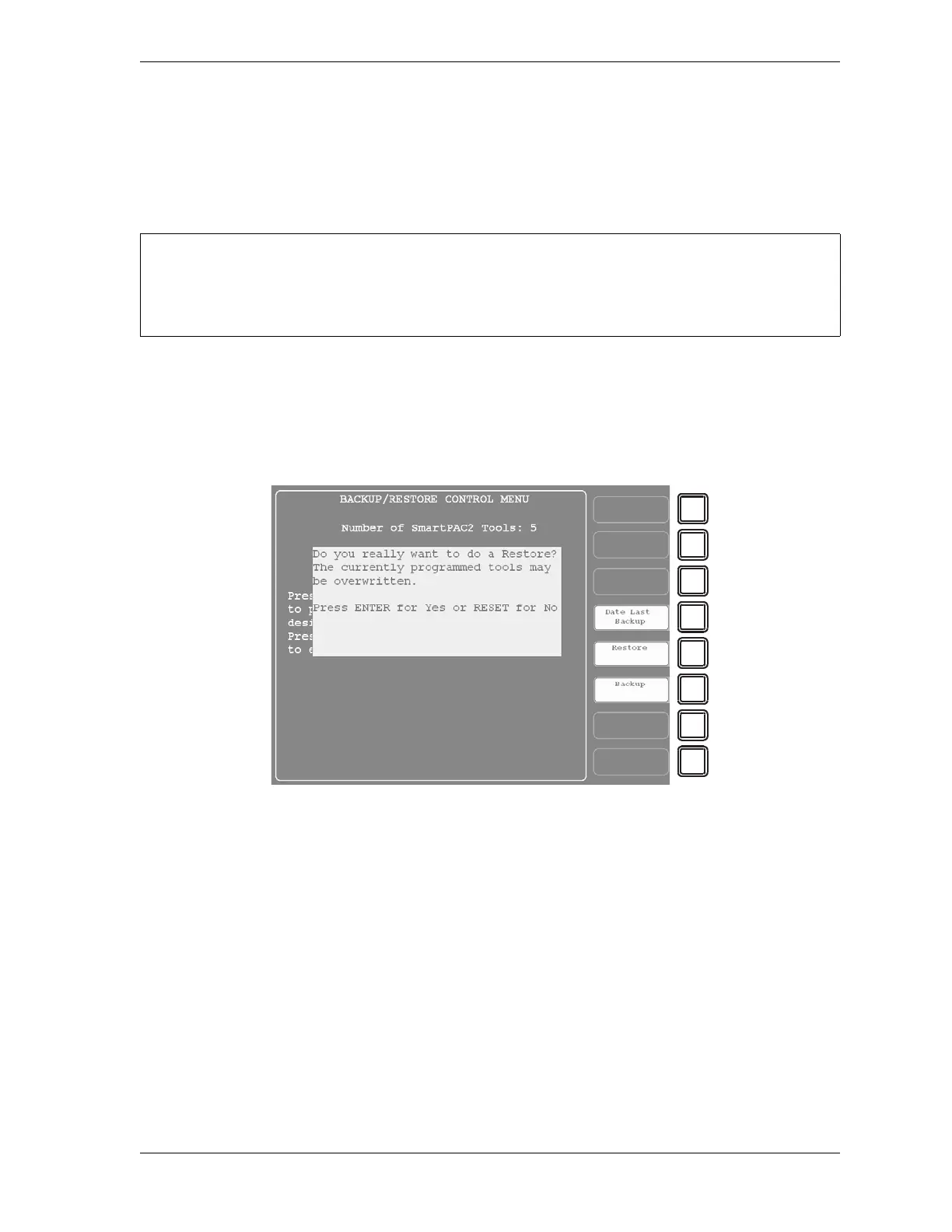
F5 (Restore) function key. The message shown in Figure D-3 displays.
2. Press ENTER to continue with the restore. When the restore has been completed, the
following message displays on the Backup/Restore Control Menu:
Restore complete!
Make sure to identify the control you are restoring to as a “SmartPAC 2.” When SBR detects that
a SmartPAC 2 is connected, it will restore only the backed-up tool settings, ignoring the
Initialization parameters.
Figure D-3. Backup/Restore Control Menu with Restore Confirmation Message Displayed



 To Next Page
 Loading...