5. ROUTES
5-11
5.8.4 How to show the detailed information about a route
1. Select a route leg of the route to get the detailed information. The pop-up menu
appears.
2. Select [Rte Detail]. The [Route Detail] window for the selected route opens (see
section 5.3).
5.8.5 Flyover
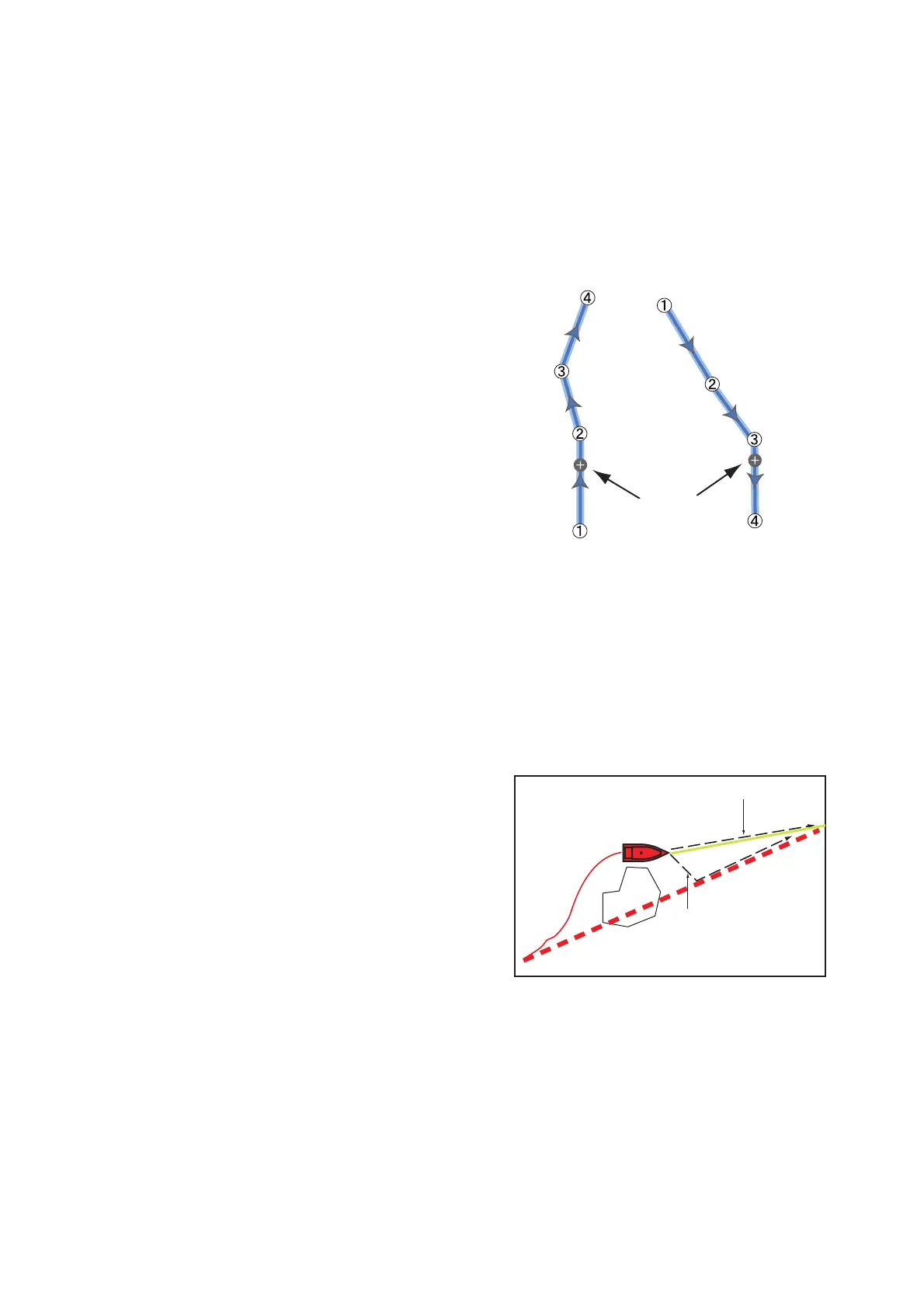
The flyover feature lets you view an entire
route from overhead, with the display au-
tomatically scrolled as the flyover pro-
gresses.
1. Select a route leg to display the pop-
up menu.
2. Select [Fly Over]. The cursor travels
back and forth between the first route
point and the last route point on the
selected route.
The picture rotates with the cursor
movement and the cursor moves up-
ward on the screen.
3. To stop the flyover feature, select [End
Fly Over] at the top right-hand corner of the screen.
5.9 Operations When You Follow a Route
5.9.1 How to restart navigation
When you follow a route, you can re-
start the navigation to the next route
point on the route from current location.
When you steer to keep away from an
obstruction or the ship drifts, you go off
course as shown in Line 1 in the figure.
If you do not need to return to the origi-
nal course, you can go to the route point
from the current position as shown in
Line 2 in the figure.
1. Select a route leg, the red dashed line or the yellow line of the route to display the
pop-up menu.
2. Select [Restart Nav.]. The route start position for the route moves to the current
position.
Cursor
Travel forward
Travel backward
Line 2
Line 1
Obstacle
Original course



 To Next Page
 Loading...