1. SYSTEM INTRODUCTION
1-18
1.11 Pop-up Menus
The pop-up menus let you quickly access the com-
mands according to the selected object, position or ac-
tive display. Select an object or position to display the
pop-up menu. The pop-up menus shown on the screen
depend on the RotoKey mode (see section 14.1). The
right figure shows the Chart Plotter pop-up menu for
TZT9/TZT14.
How to operate a pop-up menu
Rotate the RotoKey
TM
(or drag the menu items with a finger) to select an item. The
operation is same as the RotoKey menu.
• The "" mark indicates a multi-function menu item. Push the RotoKey
TM
(or tap the
menu item desired) to go to the next level.
• The "" mark indicates ON status (selected) of the item shown on the menu item.
The "" mark disappears with OFF status (deselected). Push the RotoKey
TM
(or
tap the menu item desired) to switch ON or OFF.
• There is no mark on a menu item that does the function labeled on the control or
displays the window for the function, for example, software keyboard. Push the
RotoKey
TM
(or tap the menu item desired) to process the item.
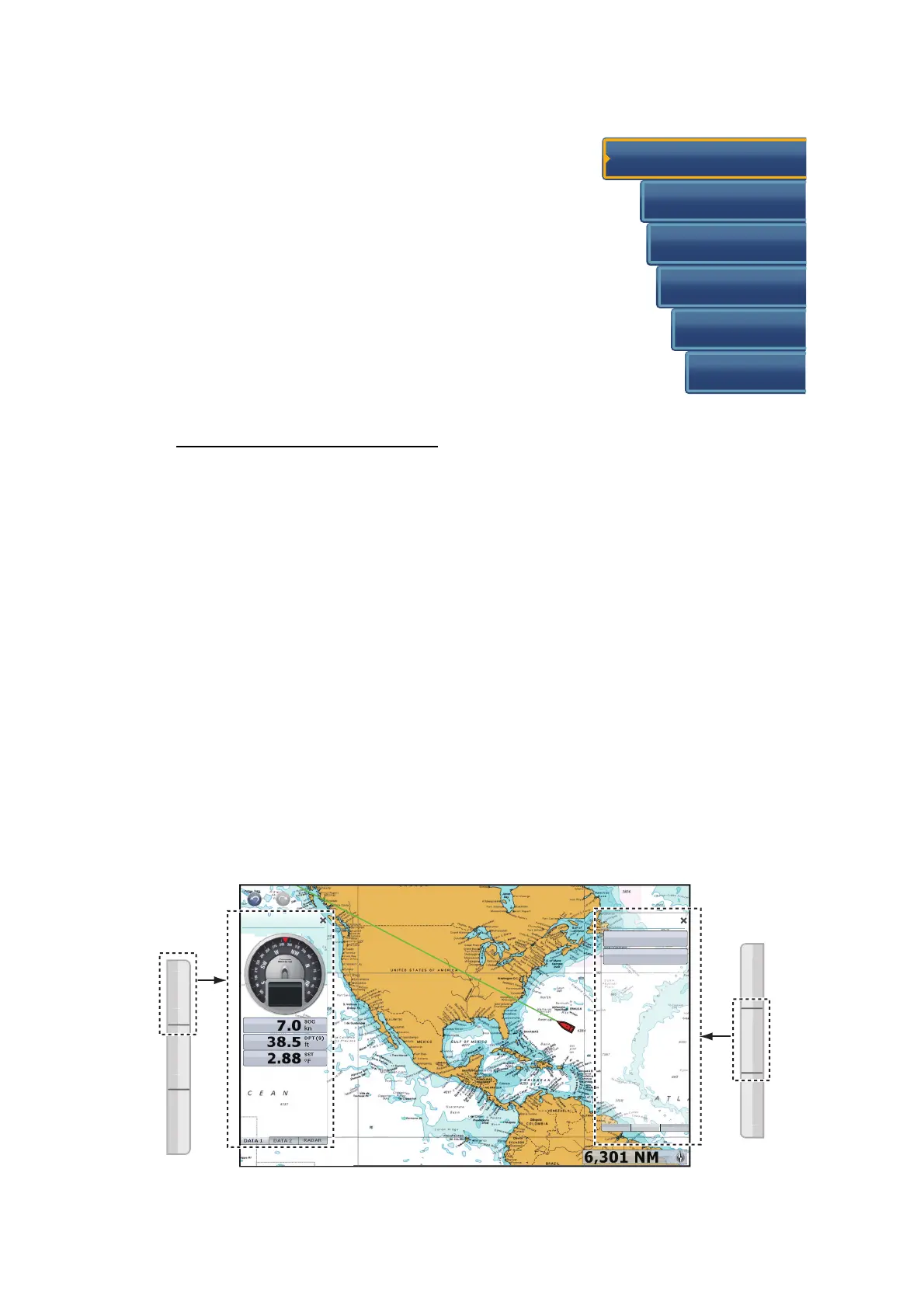
1.12 Data Area (Data Box)
The data area at both sides of the screen shows the navigation data, with data boxes.
You can select the data to display in the area, and show or hide the data boxes as
necessary. The data that you can show depends on your system configuration.
Note: A data box set is displayed at the left side in a three-way split screen.
New Point
Go To
New Route
Lat/Lon
◄
Orientation
3D
Side menu
10:30 AM
COG °M
291.7
April 10
P12.3
AWA
°
N 25°46.598'
W 80°09.795'
DATA 2DATA 1 RADAR


 To Next Page
 Loading...