7. HOW TO MANAGE CHARTS
7-12
8. Send the order file to update@c-map.com.
Within a few minutes you will receive a file that includes the terms for using the chart
service and the chart updates. Save the file to a USB flash memory and apply it as
shown in the next section.
7.7.2 How to apply the update file
1. Insert the USB flash memory that contains the update file (.ans extension) into the
USB port on the Control Unit.
2. Get into the Chart maintenance mode then click the [License] button on the
InstantAccess bar™.
3. Click the [C-MAP] tab to show the [Licenses] dialog box for C-MAP.
4. Click the [Update from File] button.
5. Find the update file on the USB flash memory then click the [Open] button.
Note: If the .ans file does not update the status of all shared C-MAP DL charts, reset
the power of all units.
7.7.3 How to enable and set up the C-MAP DL
1. Get into the Chart maintenance mode then click the [License] button on the
InstantAccess bar™.
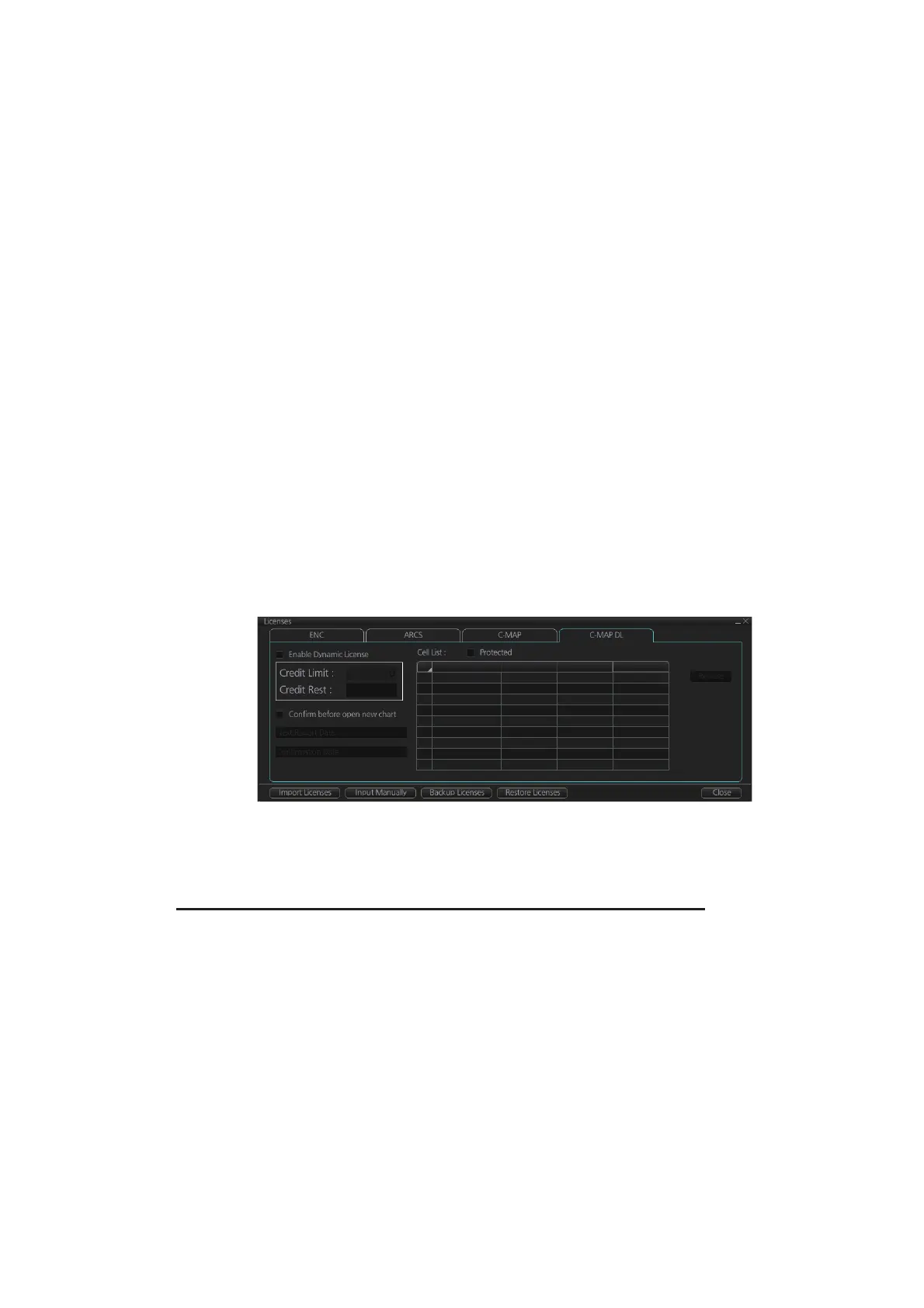
2. Click the [C-MAP DL] tab to show the [Licenses] dialog box for C-MAP DL.
3. Check [Enable Dynamic License] to enable the dynamic licensing.
You now have access to all the charts contained within the selected subscription
zones - both already licensed charts and new charts.
Settings, indications on the Licenses dialog box for C-MAP DL
• Set your annual credit limit with [Credit Limit]. A permanent warning is given if your
credit goes below this value. A new chart cannot be enabled if it causes the credit
to go below this value.
• [Credit Rest] shows the amount of credit remaining and is updated each time you
receive a confirmation answer for your request via e-mail.
• [Next Report Date] is the date when the next report should be sent to C-MAP. If
charts are not reported before the mandatory report date, access to all non-reported
charts is discontinued and can be resumed only after the confirmation answer al-
lowing use of the charts is received via e-mail.
• [Confirmation Date] is the date when you receive the confirmation answer for your
request via e-mail.
C1210011 ENC 25 May 2016 Unissued
License Name Database Expiry Date Reported


 To Next Page
 Loading...