7. HOW TO MANAGE CHARTS
7-23
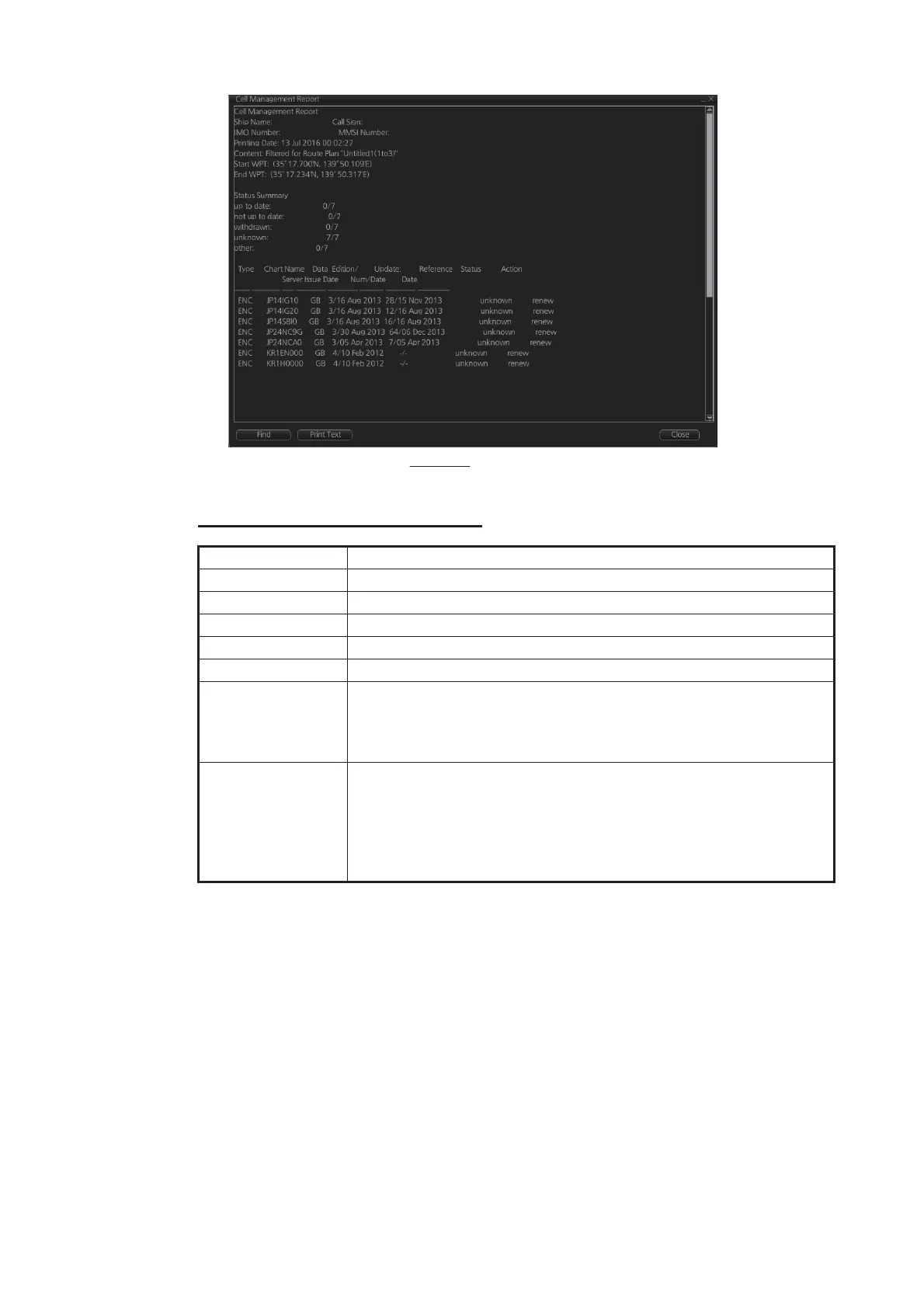
4. To print the report, click the [Print Text] button.
Description of cell status printout
7.17 How to Delete Charts
If you are going to delete all charts, turn off chart synchronization (see section 7.21)
and delete charts from each unit.
1. Click the [Manage Charts] button to show the [Manage Charts] dialog box.
2. Click the block to the left of the chart to remove, a checkmark appears. A context-
sensitive menu with [Select All] and [Deselect All] functions is available by right-
clicking the block to the left of [Type].
3. Click the [Delete Charts] button to delete the charts selected.
4. Reset the power.
Item Description
[Ship Name] Name of ship
[IMO Number] Ship’s IMO number
[Call Sign] Ship’s call sign
[MMSI Number] Ship’s MMSI number
[Printing Date] Date list printed
[Content] Settings of the items in the [Filter] window.
[Full]: A full list of charts, based on the filter settings.
[Filtered for Route Plan]: Where a route is selected at the filter set-
tings, this indication appears with the route name.
[Status Summary] [up to date]: charts with "up to date" status/total number of charts
[not up to date]: charts with "not up to date" status/total number of
charts
[withdrawn]: charts with "withdrawn" status/total number of charts
[unknown]: charts with "unknown" status/total number of charts
[other]: charts with "other" status/total number of charts
Example


 To Next Page
 Loading...