17. AIS SAFETY, NAVTEX MESSAGES
17-5
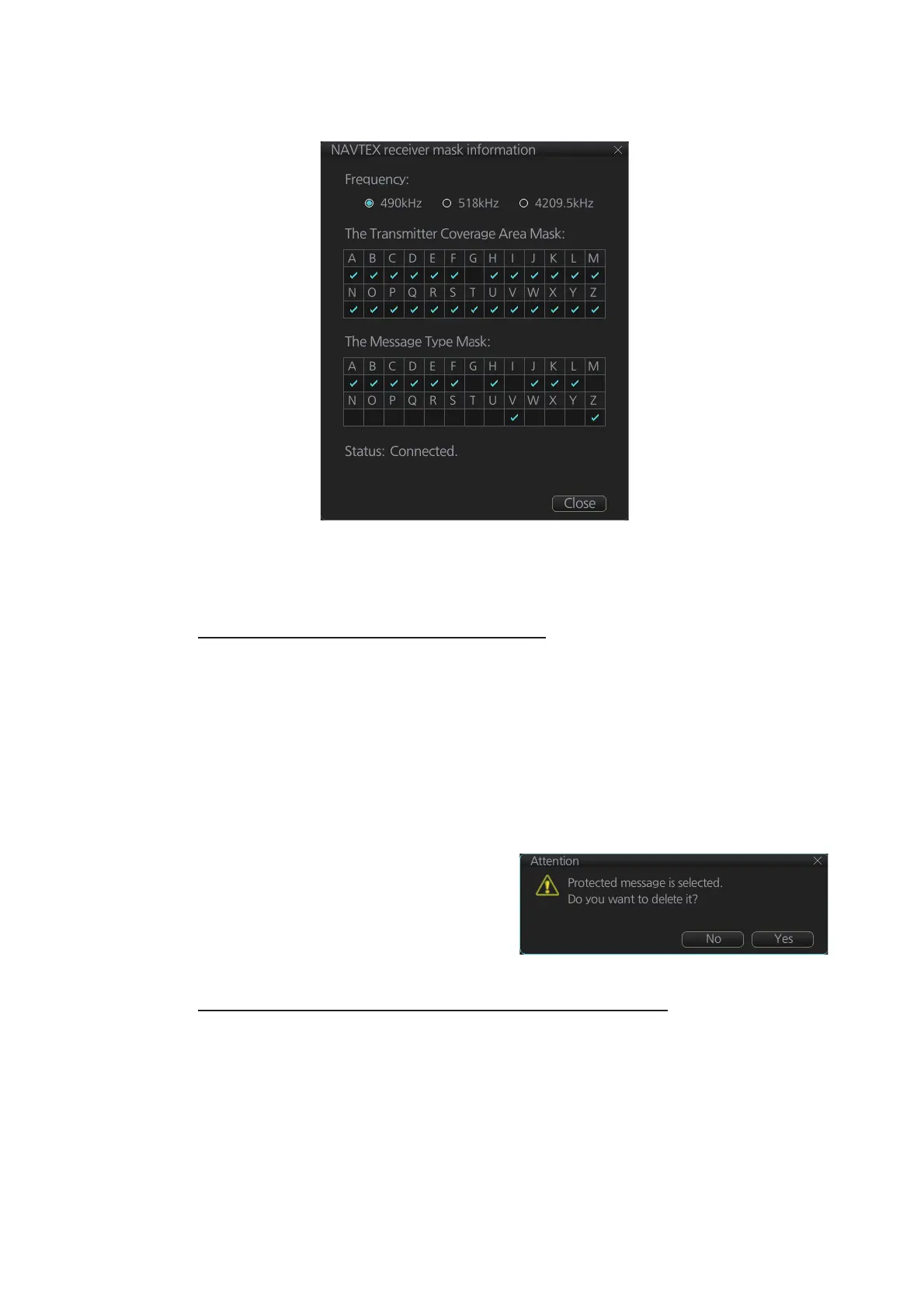
• You can check the settings for the Navtex receiver (if connected). Click the [Re-
ceiver] button to show the settings.
17.2.2 How to delete received Navtex messages
Note: A large amount of messages may take some time to delete.
How to delete received Navtex messages
1. Click the [MSG] and [NAVTEX MSG] buttons on the InstantAccess bar™.
2. Click the [Receive Box] button.
3. Click the selection column (indicated in the figure at section 17.2.1) to show a
checkmark in the box. (All messages can be checked or unchecked with the con-
text-sensitive menu. Right-click the box to the left of "P" then select [Select All] or
[Deselect All] as applicable.)
4. Click the [Delete] button. The selected message is sent to the [Trash Box]. The
[Trash Box] can hold up to 200 messages.
Note: If a protected message is se-
lected for deletion, the confirmation
message shown to the right ap-
pears. Click [Yes] to delete the pro-
tected message or [No] to cancel
deletion.
How to deleted received Navtex messages permanently
1. Click the [MSG] and [NAVTEX MSG] buttons on the InstantAccess bar™.
2. Click the [Trash Box] button.
3. Click the selection column (indicated in the figure at section 17.2.1) to show a
checkmark in the box. (All messages can be checked or unchecked with the con-
text-sensitive menu. Right-click the box to the left of "P" then select [Select All] or
[Deselect All] as applicable.)
4. Click the [Delete] button.


 To Next Page
 Loading...